
Best for: Athletes who want to send Xert workouts to their preferred app/device (Garmin, Zwift, Wahoo, Rouvy, MyWhoosh, EBC, etc.) and understand how workout syncing works.
In this guide: Where to send workouts from, how scheduled workouts and Workout of the Day work, workout delivery differences by platform, and common issues.
Quick Answers
- You can send workouts from the Today page → Workout Players or from the Workouts page (paper airplane icon).
- Workouts can be scheduled in the Fitness Planner and sent automatically to connected platforms.
- Workout of the Day (WOTD) can auto-schedule a top recommended workout daily (optional, enabled by default).
- Workout delivery varies by platform: Most apps/devices receive workouts as soon as you send/schedule them in Xert, but Rouvy and MyWhoosh load the workout after you select it in Xert, so choose the workout first, then open/refresh the app.
Supported Workout Players and Platforms
Xert supports structured workout syncing to:
- Xert EBC app
- Garmin (Garmin Connect)
- Wahoo (ELEMNT / app ecosystem)
- Zwift
- Rouvy
- MyWhoosh
- Xert Workout Player app for Garmin Connect IQ
Note: “Supported” means the platform can receive a structured workout. The exact behavior can vary by platform (see “How Workouts Delivery Works" below).
Where To Send Workouts From
Option A — Today Page → Workout Players
The Workout Players section on the Today page is built for day-to-day use. It lets you choose a workout, see what was recently sent, and quickly re-send or reset a workout if needed.
To Send a Workout:
- Go to the Today page and scroll to Workout Players.
- Find the app/device you want to use. If it isn’t listed, click Manage Workout Players to add or enable the connection.
- Under that app/device, click Choose Workout.
- Browse recommendations (use filters if needed), then select Send to [App/Platform].
- Optional: use Copy to send the same workout to another connected platform.
Note: If Automatically schedule a Workout of the Day (WOTD) is enabled, Xert will automatically send your WOTD to your connected workout players for you each day.
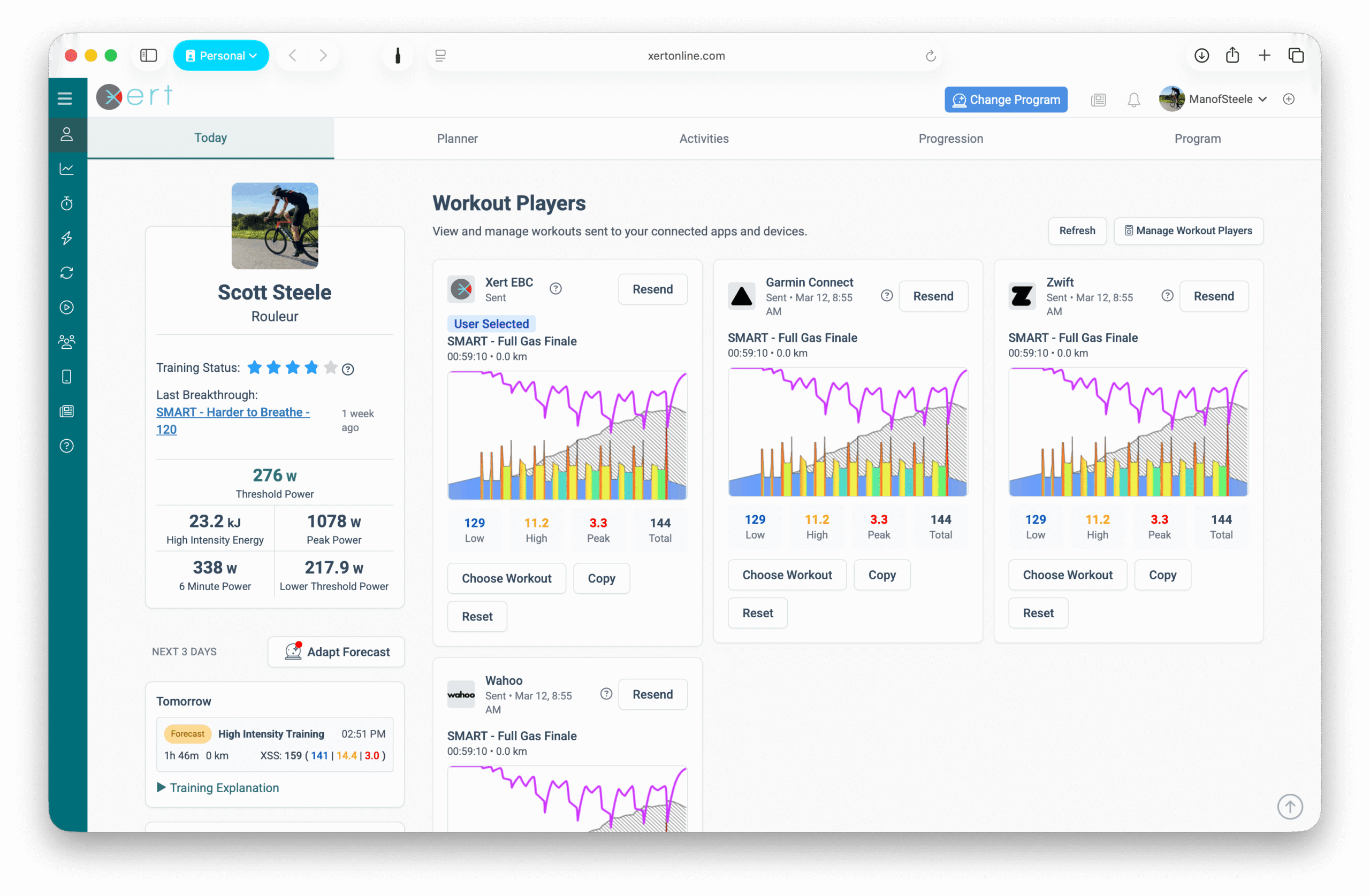
Tip: platform-specific quick fixes often start here. If a workout didn’t show up, re-sending from Workout Players is usually the fastest fix.
Option B — Workouts Page
From the Workouts library, you can manually send any workout using the paper airplane icon.
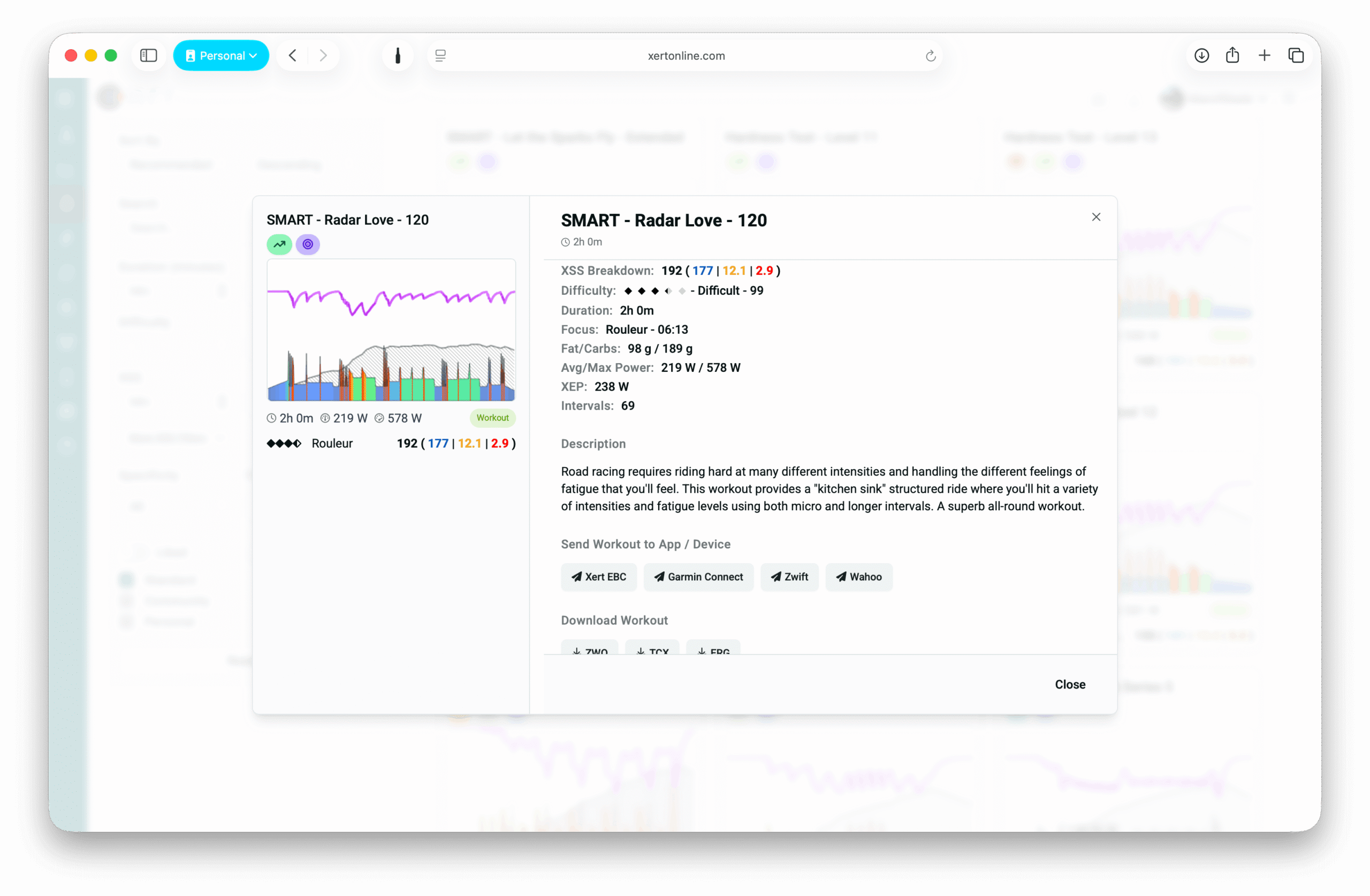
This is ideal when:
- you’re browsing the entire workout library
- you want to send a specific workout, not today’s scheduled or recommended one
- you’re testing a platform connection
Scheduled Workouts & Workout of the Day (WOTD)
Scheduled Workouts (Planner)
You can schedule upcoming workouts in the Fitness Planner, and Xert can automatically deliver them to your connected platforms.
How you schedule a workout depends on your training program:
- If you’re using an XATA program: click the + on the day you want to train and choose a workout. Since recommendations adapt day-by-day, it’s best to plan just the next few days in order.
- If you’re using a Forecast AI (XFAI) program: click Choose Training on the forecast placeholder for that day, then select one of the recommended workouts that fits the target.
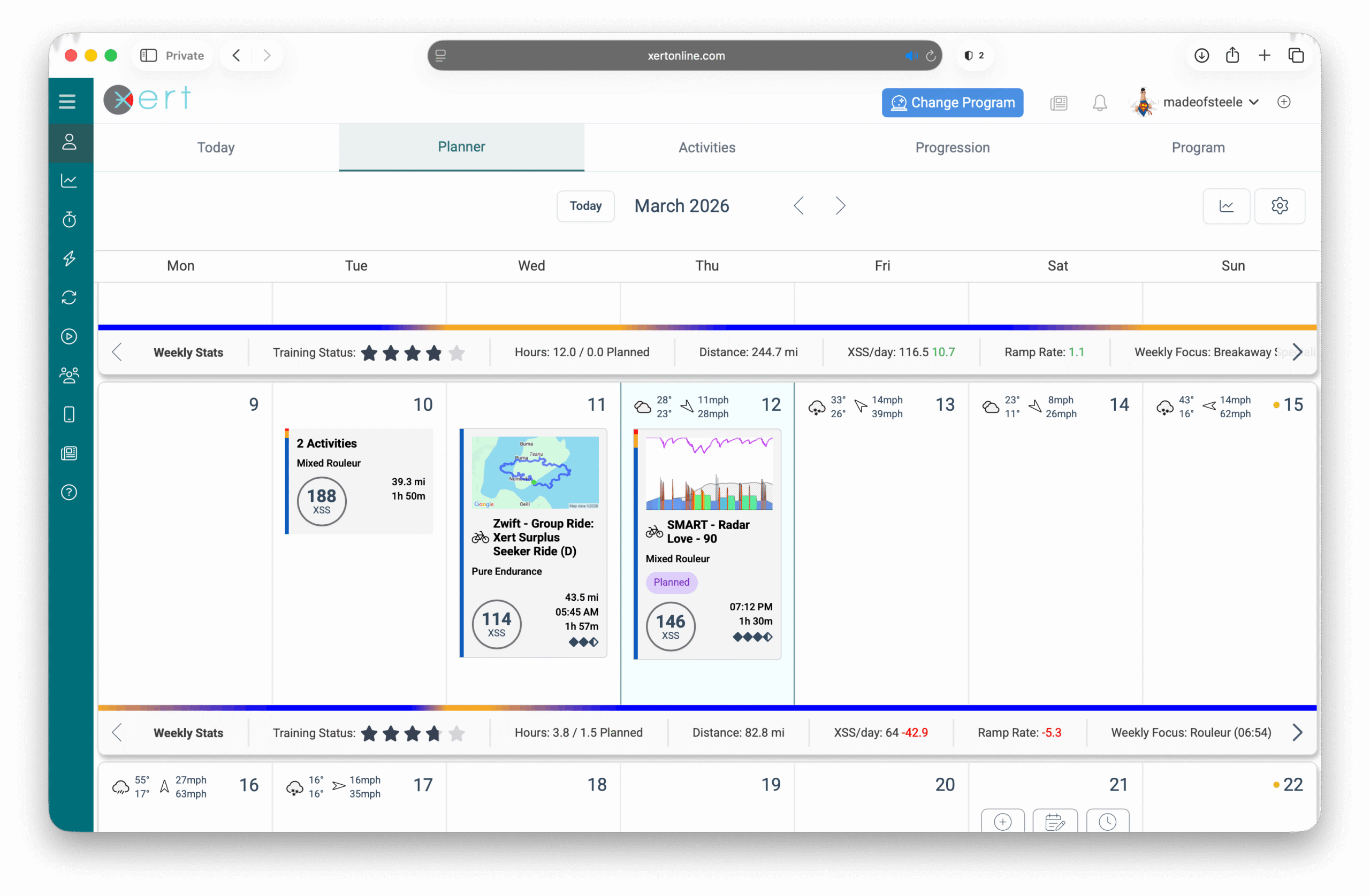
When are scheduled workouts sent?
Typically, Xert will send scheduled workouts to Zwift, Garmin, & Wahoo automatically at midnight in your timezone. Other connected apps will fetch your workout on their own schedule.
What if I schedule multiple workouts on a given day?
If you schedule more than one workout on a day, Xert will automatically send the workout with the earliest start time at midnight in your time zone. If you want to do a different one—or send an additional workout—use the Today → Workout Players section to re-send the workout you want.
Workout of the Day (WOTD)
Workout Of The Day automatically selects and schedules one of your top four recommended workouts for the day. It’s enabled by default to simplify training - especially for new users.
- Workouts scheduled automatically will show a green WOTD tag.
- You can still change the scheduled workout if you wish.
Disable WOTD
If you prefer more manual control and would rather choose workouts yourself or train using Magic Buckets / free rides:
- Open the Fitness Planner
- Open Planner Settings (gear icon in top right-hand corner)
- Disable the 'Automatically schedule a recommended workout of the day' option
When You Might Disable WOTD:
- you want to review recommendations and choose workouts manually
- you mostly train using Magic Buckets and don't need to schedule structured workouts
- you prefer outdoor free rides or races instead of structured workout sessions
How Workout Delivery Works
Most platforms receive workouts as soon as you send or schedule them in Xert. For these, the workflow is:
Choose the workout in Xert → open the platform/device → start the workout
- Supported: Xert EBC, Garmin, Wahoo, Zwift
Tip: If you don’t see it right away, refresh/restart the app.
However, some platforms fetch the workout from Xert when their app starts, so the order matters:
Choose the workout in Xert first → then open/restart the app to load it
- Supported: Rouvy, MyWhoosh
Rule of thumb: If you’re using Rouvy or MyWhoosh, always pick the workout in Xert before launching the app.
Common Questions (FAQ)
Where do I see the workout on my platform?
It depends on the platform:
- Garmin: Today's Activity > "Xert Cycling Workout"
- Zwift: “For You” Section & Custom Workouts (Xert folder)
- Wahoo: Wahoo App > My Plan area
- ROUVY: Workouts > My Collections > Xert Folder
- MyWhoosh: Xert workout shows up in Calendar
Why didn’t my workout show up?
Most common causes:
- the workout wasn’t actually sent/scheduled
- the platform needs a refresh/restart
- the connection/permissions were revoked
Fast fix: Resend the workout from Today → Workout Players and restart/refresh the destination app.
Xert scheduled an Active Recovery workout on my rest day — why?
If Automatically schedule a recommended Workout of the Day is enabled, Xert will always place something on the calendar—even on days where the recommendation is to rest. An Active Recovery workout is simply a safe, low-stress option in case you do feel like spinning easy.
If you’re taking a full rest day, you can ignore the workout.
Do SMART intervals or Mixed Mode workouts work everywhere?
Not always. Many third-party platforms can’t support Xert’s advanced features like dynamic/curved SMART intervals or Mixed Mode (ERG ↔ Slope) changes. When a SMART workout is exported, those advanced behaviors are typically simplified into basic step-based targets (often %FTP-style).
For the most accurate SMART and Mixed Mode execution, use the Xert EBC app.
Related articles: SMART Intervals • Mixed Mode Workouts
Troubleshooting
Workouts not appearing on device/app
Use this general checklist:
- Confirm the platform is connected in Xert
- Confirm a workout is scheduled or sent today
- Resend the workout from Today → Workout Players
- Restart/refresh the destination app/device
- If needed, disconnect/reconnect the integration permissions, then re-send your workout.
Related article: Troubleshooting: Workouts Not Appearing on Device/App
Comments
0 comments
Please sign in to leave a comment.