
Best for: Athletes or coaches who want to bring workouts from TrainingPeaks, Zwift, TrainerRoad, or other tools into Xert—and optionally convert them into Xert’s SMART interval types.
In this guide: Supported file types, how to import, how conversion works, which settings to choose, and what to do after import.
Quick Answers
- Xert supports importing ERG, MRC, and ZWO workout files.
- Imported workouts go into your Personal Workouts Library.
- You can optionally convert %FTP-style workouts into Xert's advanced SMART intervals using your Fitness Signature (TP, HIE, PP) & real-time MPA.
- After import, review the workout’s targets, MPA, Difficulty, XSS, and Focus before scheduling it.
Overview: What the Import Tool Does
The Workout Import and SMART Conversion Tool lets you:
- import workouts from other platforms into Xert, and
- convert interval targets into Xert-specific formats (e.g., XSSR, MMP, SMART Power/Duration) so the workout scales to your current fitness.
This is especially useful if your imported workout is built around old-school %FTP steps, but you want Xert to make it SMART by expressing it in a way that better reflects fatigue and your Fitness Signature.
Supported Import File Formats
Xert currently supports importing:
- ERG
- MRC
- ZWO
You can also import multiple workouts at once.
How to Import a Workout
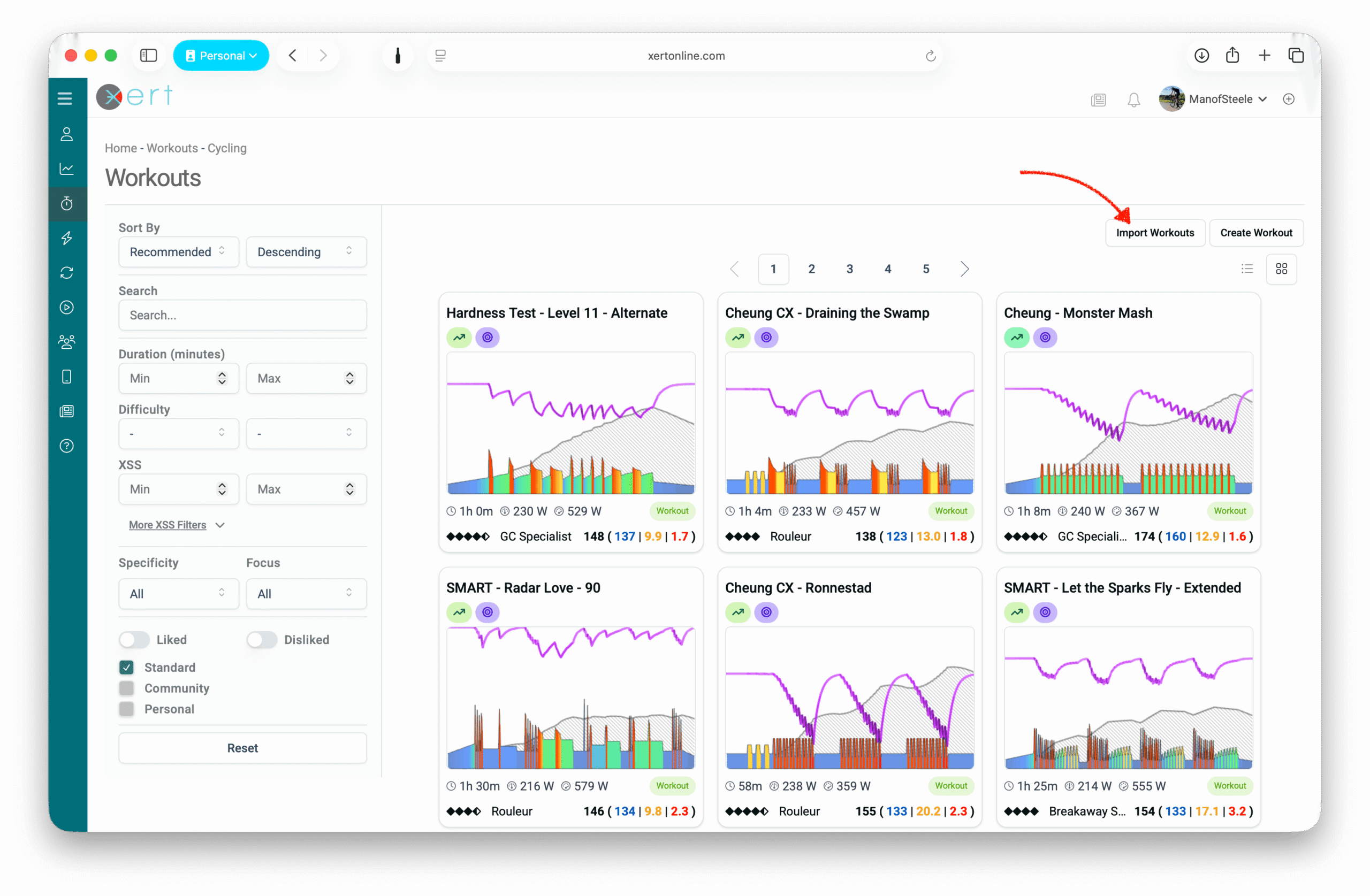
Step 1 — Open the Import Workouts tool
Go to the Workouts page and choose Import Workouts.
Step 2 — Choose your Import Settings (Optional)
Xert provides two drop-downs to control how intervals are converted:
- one for Below FTP intervals
- one for Above FTP intervals
You can keep a workout close to the original format (e.g., %TP), or convert it into more advanced SMART targets using a variety of SMART interval types.
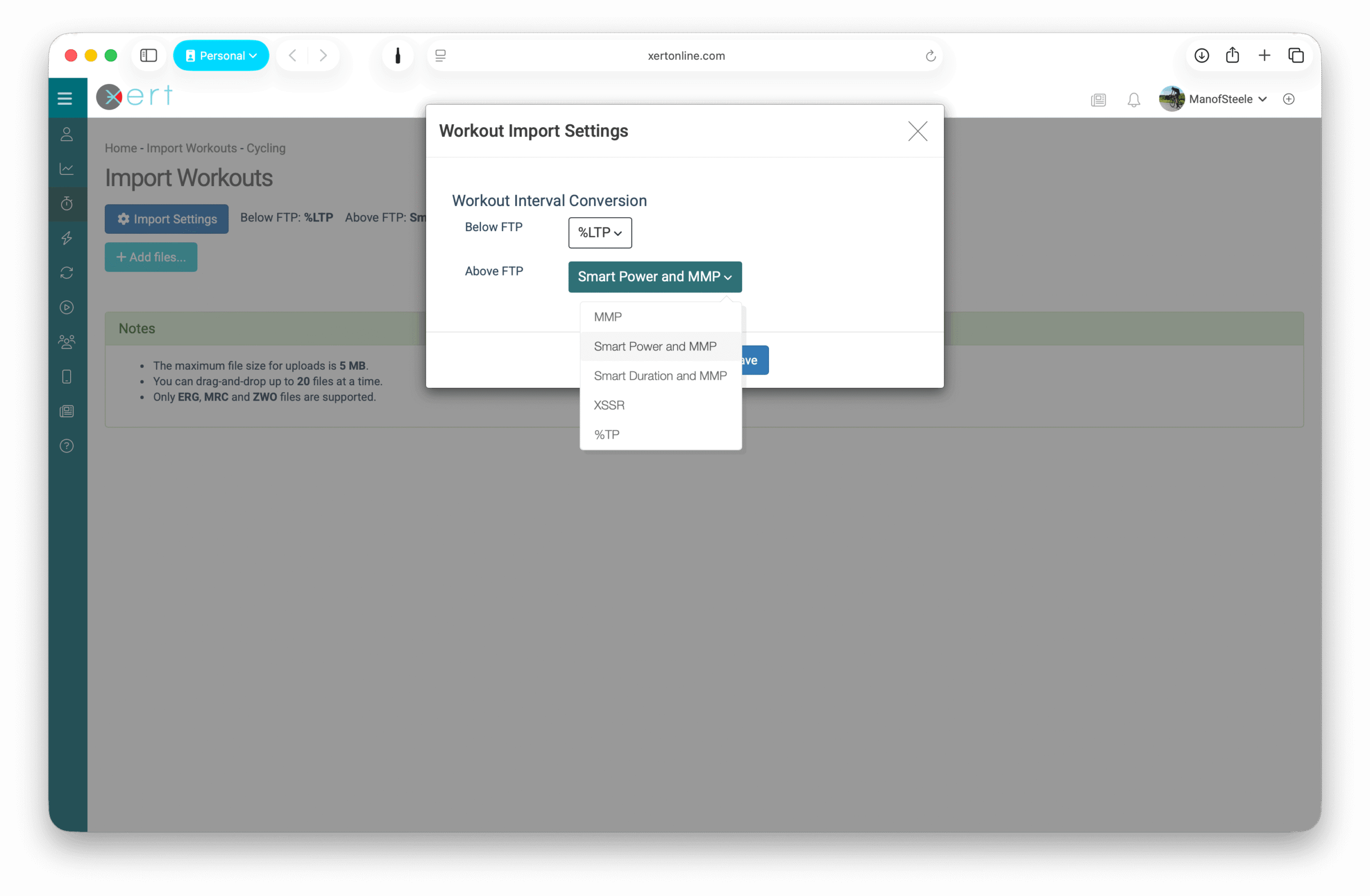
Below FTP conversion options
Options include:
- XSSR — convert the interval to an equivalent XSS/hr so total XSS stays consistent
- %LTP — good for easy/rest intervals well below FTP
- %TP — keeps traditional %FTP-like structure
- Smart Power and MMP / Smart Duration and MMP — adds Xert's real-time SMART adjustment features to the interval, either adjusting the interval duration or interval power target
- Combination options such as %LTP and %TP, and SMART hybrid options.
Above FTP conversion options
Options include:
- MMP — converts to an equivalent Mean Maximal Power target using your signature
- Smart Power and MMP / Smart Duration and MMP — adds SMART behavior on top of MMP
- XSSR — Convert the interval based on XSS generation rate; gives Xert's signature curved intervals
- %TP — keep the workout using simple %FTP intervals
Rule of thumb:
- If you want the workout to behave like it did originally → choose %TP options.
- If you want the workout to scale with your fitness and use Xert's advanced SMART interval features → use XSSR/MMP/SMART options.
Step 3 — Import
Add your files, then click Import. Xert will convert and save the workouts to your Personal Library.
Note: Xert supports ramp intervals and repeating sets, and can group identical repeated intervals as sets.
Step 4 — Open Imported Workout(s) from Notifications
After import, open the Notifications icon to access each newly imported workout and open it in the Workout Designer.
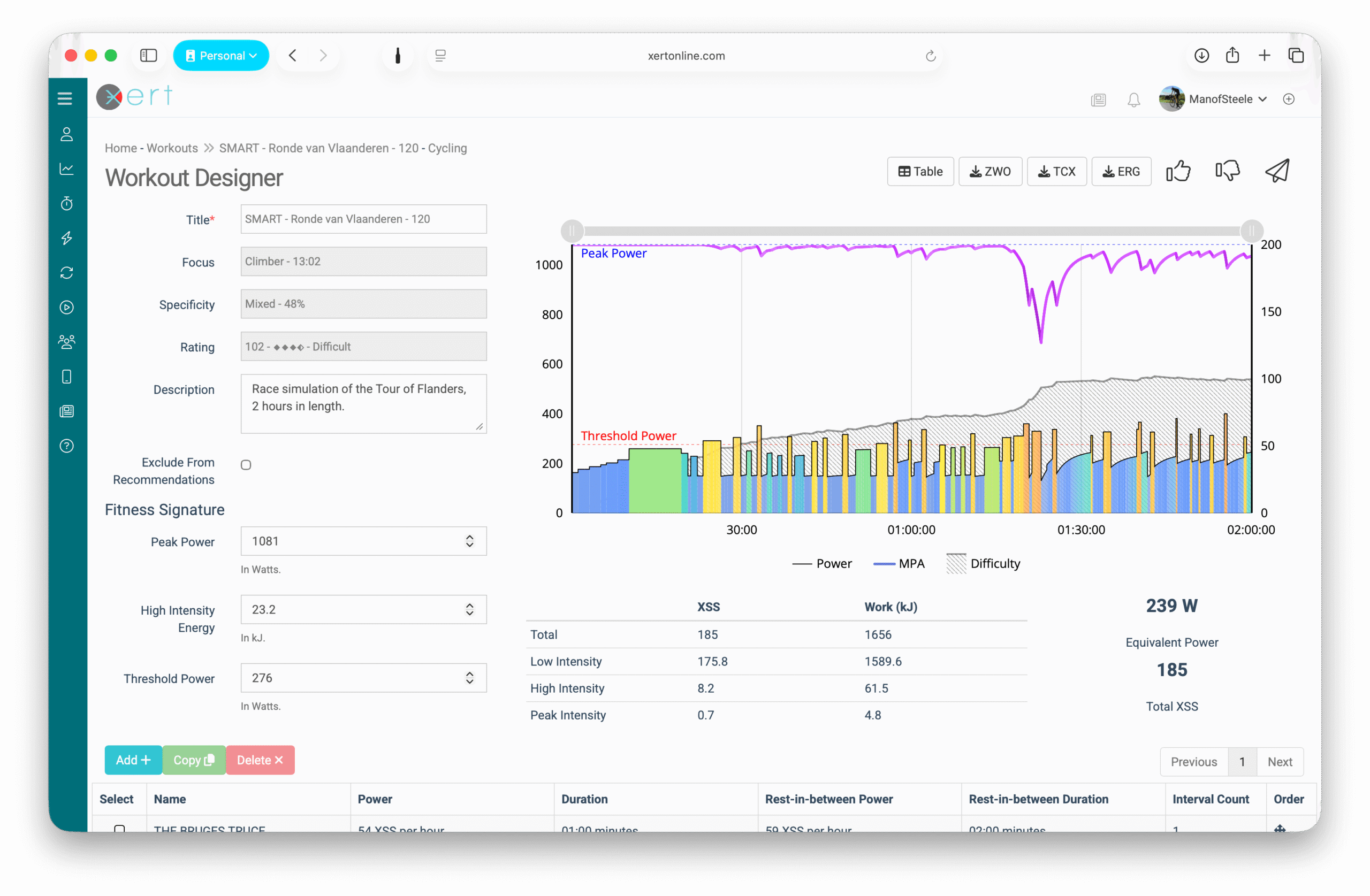
Step 5 — Review the Workout in the Workout Designer
In the Workout Designer you can:
- preview interval targets using your Fitness Signature
- review MPA and Difficulty Score to understand how challenging it will be
- review XSS and Focus to see how it aligns with your training goals
- edit the workout after import if needed
Step 6 — Schedule & Do Your Workout
Once imported, you can:
- have Xert include it in recommended workouts, when appropriate
- Send it to the Xert EBC app (iOS/Android) or the Xert Workout Player for Garmin ConnectIQ
Common Questions (FAQ)
Will the imported workout automatically match my fitness?
Yes—conversion uses your Fitness Signature, so targets can be expressed relative to your current fitness rather than fixed %FTP steps.
Can Xert import ramp intervals and repeats?
Yes, Xert workout import feature supports both ramped & repeating intervals.
Can I edit the workout after importing?
Yes—imported workouts can be edited in the Workout Designer.
Why does the imported workout look different on Zwift/Garmin/Rouvy?
Some platforms don’t support Xert’s full SMART behaviors (for example, dynamic/curved targets). If you want the most faithful SMART execution, use the Xert EBC app.
Comments
0 comments
Please sign in to leave a comment.