
Xert's Fitness Signature usually updates itself accurately from your ride data — breakthroughs raise it, signature decay lowers it. But occasionally, you may want to manually adjust your signature on a specific activity. This article covers when manual adjustment is appropriate and how to do it.
When to Manually Adjust (and When Not To)
Most users never need to manually edit their signature. In most cases, the better approach is to let Xert update naturally:
- For an underestimated Peak Power or HIE: Do a few short maximal sprints (10-15 seconds) on your next ride. Xert sees the new max efforts and updates your signature automatically.
- For an underestimated Threshold Power: Push hard on a sustained effort — a hard interval, a race, or a fast group ride. A breakthrough will update your TP automatically.
- For a signature that feels too high after a non-representative effort: Use the Flagging an Activity feature to revert the signature change instead of manually editing.
Manual adjustment makes sense when:
- A value is clearly wrong — for example, your Peak Power was inflated by a power meter spike
- You have an external validated value you want to apply (e.g., a known or verified FTP from independent testing)
- Xert's signature extraction wasn't able to lock onto a valid signature from a maximal effort (you can see power well above MPA on the chart, but no breakthrough was recorded)
- You've already cleaned up bad activities and done maximal efforts, but your signature still won't stabilize
If you're not sure, try the natural path first. Manual editing is a power-user tool — useful when needed, but not the default fix.
How Manual Adjustments Are Treated
When you manually save a signature on an activity, Xert treats it as an anchor point — similar to how a breakthrough is treated. The saved signature becomes the reference, and Xert recalculates all subsequent activities starting from that signature.
Locking the activity (which Save does automatically) prevents later "trickle-down" recalculations from overriding your manual entry. You can unlock the activity later if you want subsequent updates to flow through it again.
Where the Controls Live
Manual signature adjustment happens on the activity details page of a specific activity. Open any activity, scroll down below the MPA chart, and look for the controls along the bottom.
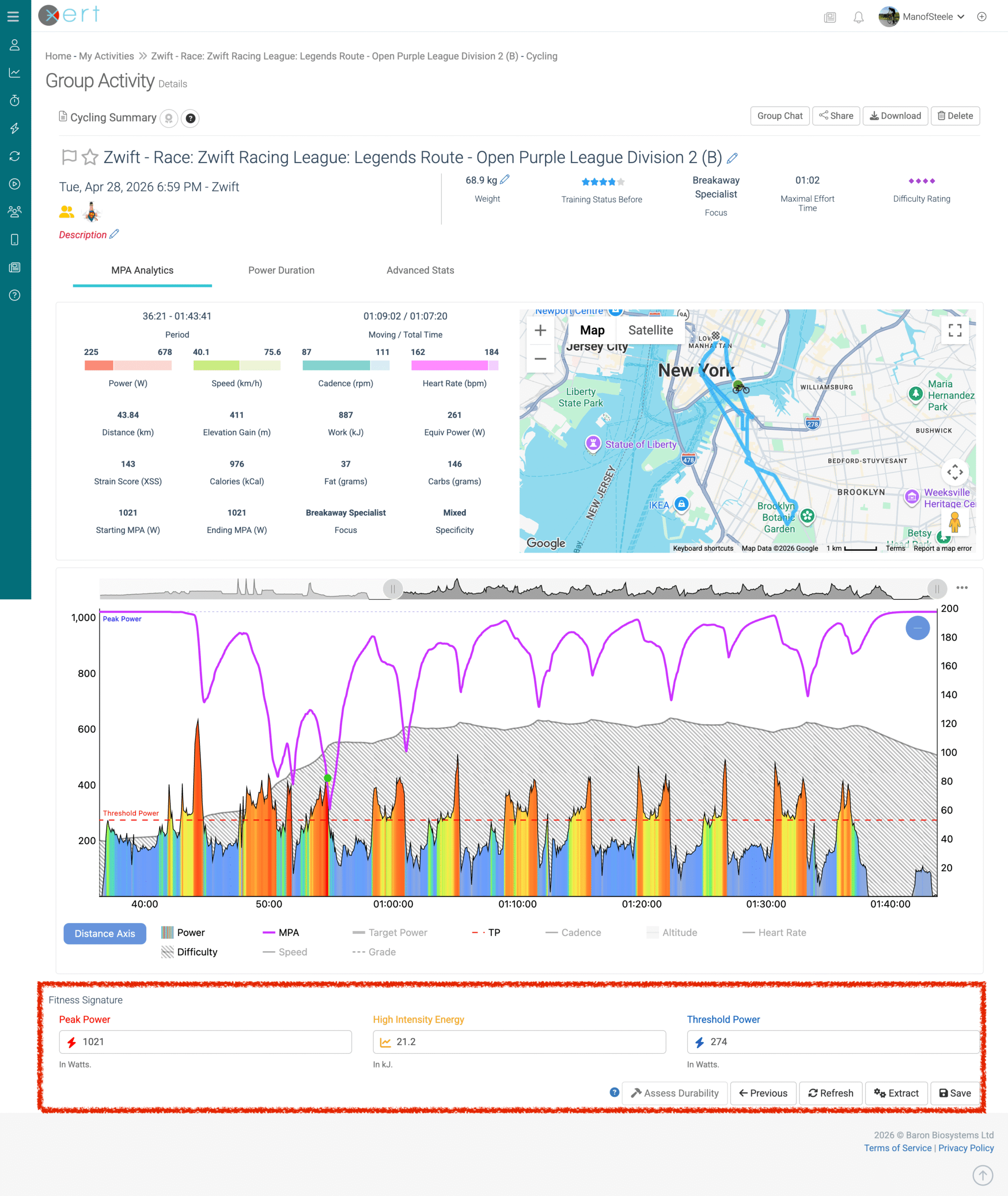
You'll see input fields for Peak Power, HIE, and Threshold Power, along with several buttons:
- Previous / Current (on breakthrough or near-breakthrough activities) — toggles the MPA chart view between the signature at the start of the activity and the updated signature after the activity
- Refresh — re-renders the MPA chart using whatever signature values you've entered. Doesn't save anything; just lets you preview.
- Extract — runs Xert's signature extraction algorithm on the activity to derive a signature from your data. Will only work if MPA and Power are close at some point in your activity.
- Save — commits your manually-entered signature and locks the activity
- Unlock (on locked activities) — releases the activity from its locked signature, allowing future progression updates to modify it
Manually Correcting an Underestimated Signature
This is the most common reason to use these controls. If Xert has underestimated your signature, the MPA line on the chart will sit well below your power output — sometimes for extended periods.
Why This Happens
Xert's signature extraction expects to see your power touching or slightly exceeding the MPA line at maximal efforts. If your starting signature is significantly off (often because Xert hasn't yet seen your true peak efforts), the algorithm can't extract a valid signature from data that's entirely above MPA — it assumes the data is invalid.
The Workflow
- Open the activity where your effort was clearly maximal but no valid signature was extracted.
- Manually increase the relevant signature parameter — usually Peak Power, HIE, or Threshold Power, depending on which type of effort is unaccounted for. Try increases of 5-10% at a time.
- Click Refresh to re-render the MPA chart with your new values. Repeat until your power line shows only minor overlap with MPA — you should be able to see your effort approaching MPA but not vastly exceeding it.
- Click Extract to let Xert's algorithm extract a valid signature from the data. With reasonable starting values, extraction should now succeed.
- Click Save to commit the signature and lock the activity.
[Screenshot placeholder: MPA chart with underestimated signature, showing power well above MPA line] [Screenshot placeholder: same chart after manually increasing Threshold Power, with power and MPA more closely aligned]
If extraction doesn't succeed even after manual adjustment, the data may not contain enough information to derive a valid signature — for example, a long endurance ride without any maximal efforts. In that case, save your manually-entered values directly without running Extract. Contact our support team if you'd like any assistance with this!
Manually Setting Peak Power for a Short Sprint
Xert's breakthrough detection ignores power spikes shorter than 5 seconds, which prevents stray data spikes from incorrectly raising your Peak Power. But this also means a genuine max sprint that lasted only 2-3 seconds may not trigger a breakthrough.
If you produced a brief, valid max effort that wasn't captured:
- Find the highest 1-second power value recorded on the ride (visible in the activity's power data).
- Enter that value as your Peak Power in the Advanced MPA controls.
- Click Save to lock the new Peak Power value.
Only do this when you're confident the data is valid — a clean sprint with no obvious power meter spikes or dropouts.
Locking and Unlocking Activities
When you click Save, the activity becomes locked. Locking means:
- The activity's signature won't change if you modify an earlier activity (no "trickle-down" updates affect this one)
- The signature you saved is treated as the truth for this activity going forward
You can unlock an activity individually by clicking the lock icon on the Activities table, or by opening the activity and clicking Unlock. Unlocking allows subsequent progression updates to modify the signature again.
See Locking an Activity for more on lock behaviour.
The Trickle-Down Effect
Important: Modifying and saving an activity that occurred in the past will cause a trickle-down recalculation. Every activity recorded after the modified one is re-analyzed using the updated signature as the starting point. This can shift your training history significantly.
Before saving a historic activity:
- Make sure your changes are correct
- Be ready for some delay while Xert reprocesses subsequent activities (longer for activities further in the past)
- Understand that this is reversible only by manually correcting again or by running a full Progression Recalculation
Resetting All Signatures (Recalculate Progression)
If you've manually adjusted multiple activities and want to start fresh, you can recalculate your progression from scratch. This unlocks all activities and re-runs Xert's signature extraction across your full history.
- Go to Profile Settings.
- Select the Fitness Signature tab.
- Click Recalculate Progression.
IMPORTANT: This is a heavy operation. Only use it when you're sure you want every activity to be re-evaluated. The recalculation can take some time depending on how many activities you have.
See Progression Recalculation: When to Use It for more.
Related Articles
- How to Verify Your Fitness Signature — and what to do if it seems wrong
- Flagging an Activity
- Why Did My Fitness Signature Change in an Unexpected Way?
- How Xert Learns Your Fitness Signature
- Breakthroughs & Near-Breakthroughs
- Locking an Activity
Still Need Help?
If signature extraction isn't succeeding, your manual values seem off, or you're not sure whether to manually adjust or use a different tool, contact support@xertonline.com with:
- A link to the activity in question
- A description of what you've tried so far
- Your Xert username
Comments
0 comments
Please sign in to leave a comment.