
Best for: Athletes who want to execute Xert workouts inside ROUVY and have completed ROUVY rides automatically sync back to Xert for analysis and progression.
In this guide: How to connect ROUVY to Xert, how workout/activity sync works, where to find Xert workouts in ROUVY, and common issues/FAQs.
Quick Answers
- Connect from ROUVY: ROUVY → Connected Apps and Devices → Connected Apps → Xert → Connect.
- Workouts in ROUVY: ROUVY → Workouts → My Collections → Xert.
- Activity sync: Enable Autosync (recommended).
Overview
Connecting ROUVY to Xert creates a simple workflow:
- Pick your training in Xert (recommended workout, scheduled workout, or a workout you choose)
- Open ROUVY and ride the workout
- Your completed activity syncs back to Xert for analysis, updated loads, and progression
Connect ROUVY to Xert (Step-by-step)
ROUVY integration is enabled from your ROUVY account, where you connect Xert as an app partner.
- Log in to your ROUVY account on the web
- Click your profile icon (top-right) → Connected Apps and Devices
- Open the Connected Apps tab
- Under Available Apps, find Xert and click Connect
- You’ll be redirected to Xert—log in and authorize access
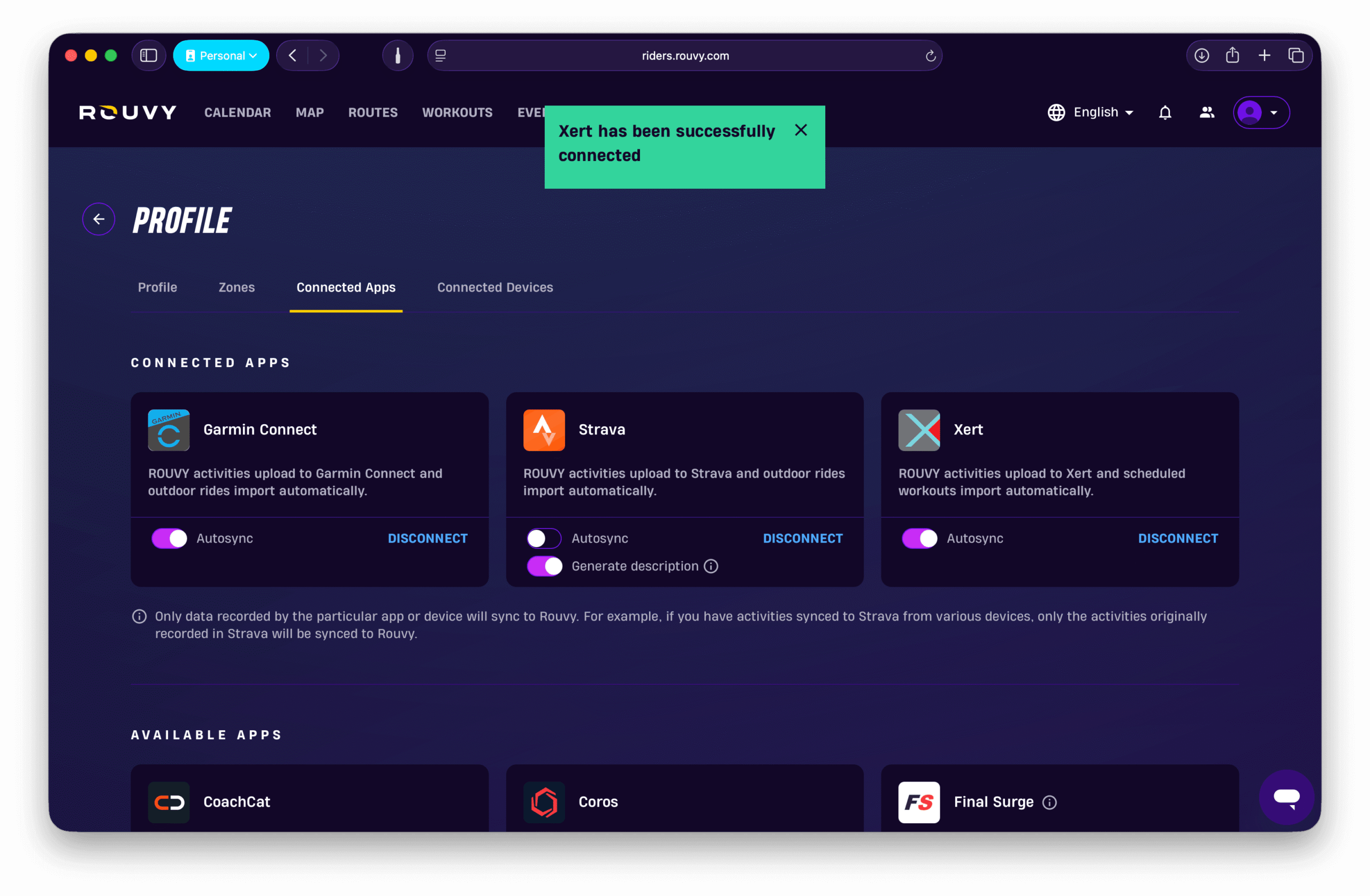
How to confirm it’s working
- In ROUVY, go to Workouts → My Collections and confirm the Xert tile appears.
Integration Features
1) Activity sync from ROUVY to Xert (Auto vs Manual)
ROUVY allows two sync modes for activities:
- Autosync Enabled (recommended): ROUVY activities sync automatically to Xert when finished.
- Disable the Autosync option to manually choose which activities you wish to sync using ROUVY’s training calendar.
2) Workouts from Xert in ROUVY
Once connected, your Xert workouts are available in the ROUVY app here:
- Open ROUVY
- Go to Workouts
- Scroll to My Collections
- Select Xert
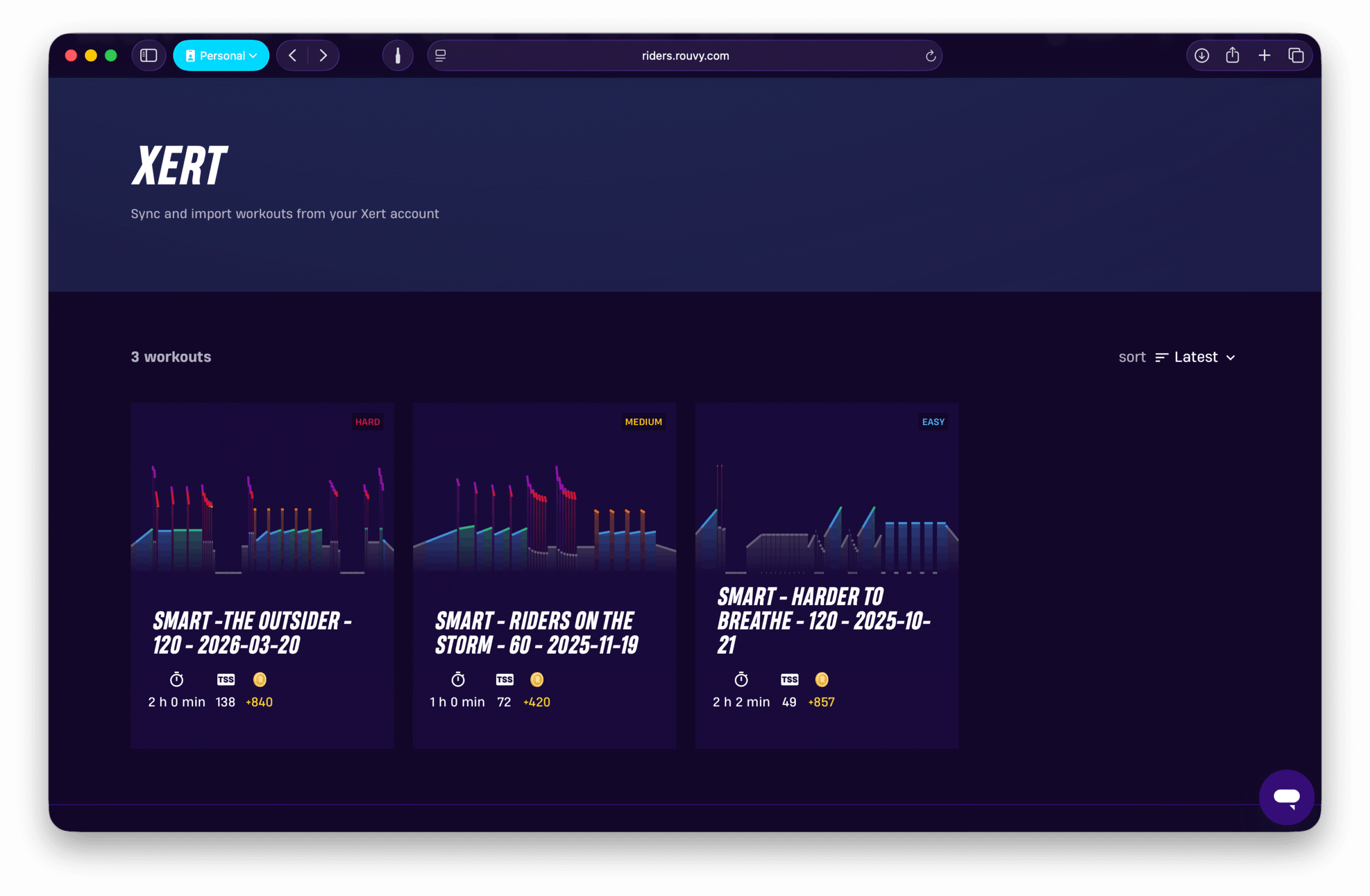
Tip: For ROUVY, choose/schedule the workout in Xert first, then open (or restart) ROUVY so it can load the latest selection.
3) Timezone Sync
If workouts appear on the wrong day or activities land on the wrong date, check your ROUVY timezone setting in ROUVY Profile Settings > Sync Timezone.
Troubleshooting
Workouts aren’t showing up in ROUVY
Direct answer: This is usually connection, refresh timing, or timezone.
Fix checklist
- Confirm Xert is connected in ROUVY (Connected Apps → Xert)
- In Xert, make sure you’ve actually selected/sent/scheduled a workout for today
- Restart ROUVY and check Workouts → My Collections → Xert
- Verify timezone in ROUVY Connected Apps settings
- Disconnect/reconnect Xert in ROUVY if needed
My ROUVY activity isn’t syncing to Xert
Fix checklist
- Confirm the activity exists in ROUVY and is fully uploaded
- Confirm your ROUVY sync mode is Auto (or manually sync it if you chose Manual)
- Wait a few minutes (uploads can lag)
- Disconnect/reconnect Xert in ROUVY and test with a short ride
Common Questions (FAQ)
Where do Xert workouts appear in ROUVY?
In the ROUVY app: Workouts → My Collections → Xert.
Can I use Magic Buckets with ROUVY?
ROUVY doesn’t offer the Magic Buckets feature natively, but you can still use Magic Buckets as part of your training:
- Ride/race in ROUVY/MyWhoosh, using the Magic Buckets data field on Garmin, Hammerhead, or Xert EBC app to hit your Low/High/Peak targets.
- If you prefer a structured workout session, you can also generate a Magic Buckets workout in Xert and complete it in ROUVY/MyWhoosh.
Do I need to start ROUVY after choosing a workout in Xert?
Usually, yes. A reliable workflow is: choose/schedule the workout in Xert first, then open/restart ROUVY so it refreshes the Xert workout list.
Do Xert SMART intervals / Mixed Mode workouts work in ROUVY?
Not always perfectly. Many third-party platforms don’t support Xert’s most advanced behaviors (dynamic/curved targets or mode changes). If you want the full SMART experience, record the workout using Xert EBC instead.
Related Resources
- Sending Workouts with Xert
- Xert + Strava Integration
- Magic Buckets Overview
- Troubleshooting: Workouts Not Appearing on Device/App [link]
Comments
0 comments
Please sign in to leave a comment.