
Best for: Athletes using a Hammerhead Karoo who want rides automatically synced into Xert and want to install Xert EBC on Karoo for Xert real-time data.
In this guide: How to connect Hammerhead to Xert, how activity sync works, how to install Xert EBC on Karoo, and common questions/troubleshooting.
Overview
Connecting Hammerhead Karoo to Xert gives you a clean workflow:
- Record rides on your Karoo
- Activities sync into Xert automatically
- Xert updates your fitness modeling (Signature/MPA), training loads, and recommendations
If you want real-time Xert data on Karoo, you can also install Xert EBC on Karoo.
Looking for Magic Buckets on Karoo? See: Magic Buckets on Karoo: Setup + How to Use [link]
Connect Hammerhead to Xert
Direct answer: To connect Xert to Hammerhead, authorize your Hammerhead account in Xert so Karoo activities can sync automatically.
- Log in to Hammerhead Dashboard on the web
- Navigate to Accounts, find Xert and click 'Connect'
- Sign in to your Xert account and authorize permissions
- Confirm the status shows Connected
Integration Features
Automatic Import for New Activities
Once connected, rides recorded on your Karoo will import into Xert automatically after they upload, where they will appear on the Today page. Typically rides are synced to Xert within a few minutes after the activity is uploaded to Hammerhead.
[Image of Hammerhead activity on Today page]
How to confirm it’s Working
- Record and save a short test ride on your Karoo
- Check Today page in Xert to confirm the activity appears
Tip: If you want Xert’s training summary & visual reports included in your Strava uploads, disable Hammerhead → Strava syncing and let Xert forward your activity to Strava instead. See this article for more information: How to Show Xert Breakthrough & Workout Reports on Strava
Install Xert EBC on Karoo
Step-by-step
-
Open the Extensions menu on your Karoo device. Find “Xert EBC” and tap Install.
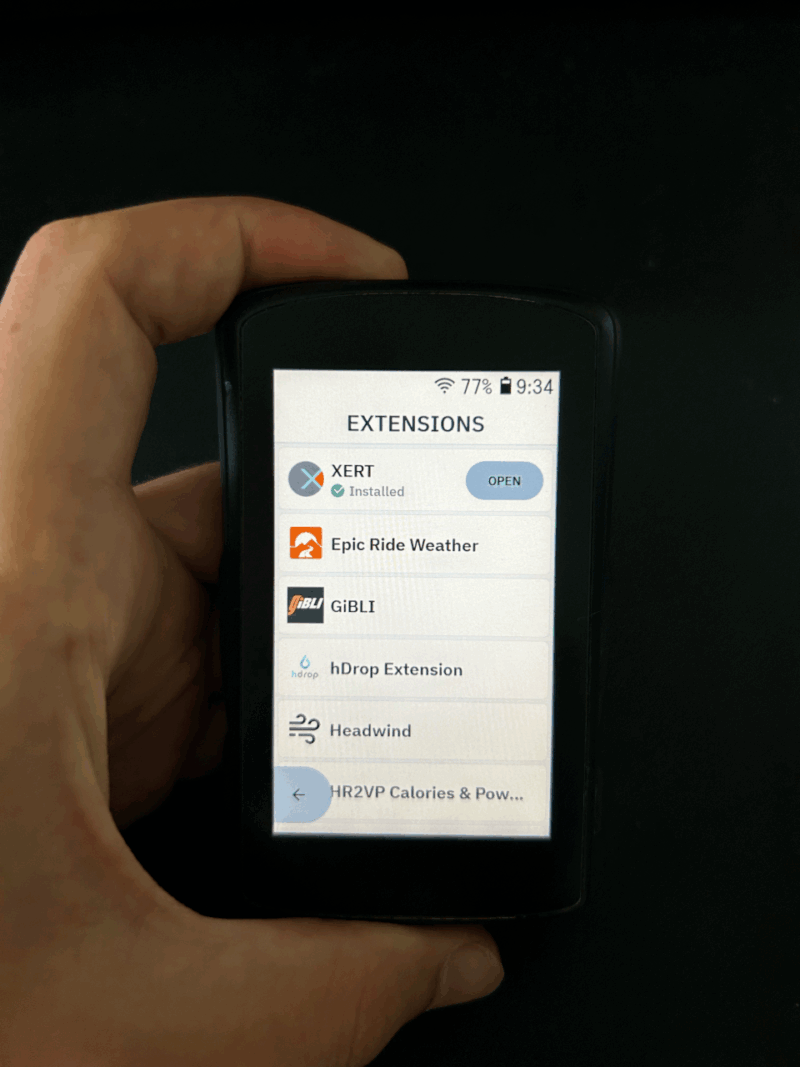
Important: If you previously installed an older Xert app/extension, uninstall it first, then perform a fresh install to ensure compatibility.
- Once installed, launch Xert EBC and Sign In using your Xert username and password.
- When prompted, accept all permissions to ensure full functionality.
-
Edit your Karoo ride profile and add MPA (Maximum Power Available) and/or XSS (Xert Strain Score) as a data field. Tapping either the MPA or XSS data fields enables quick access to Xert EBC mid-ride (more info on using Xert EBC in the next section).
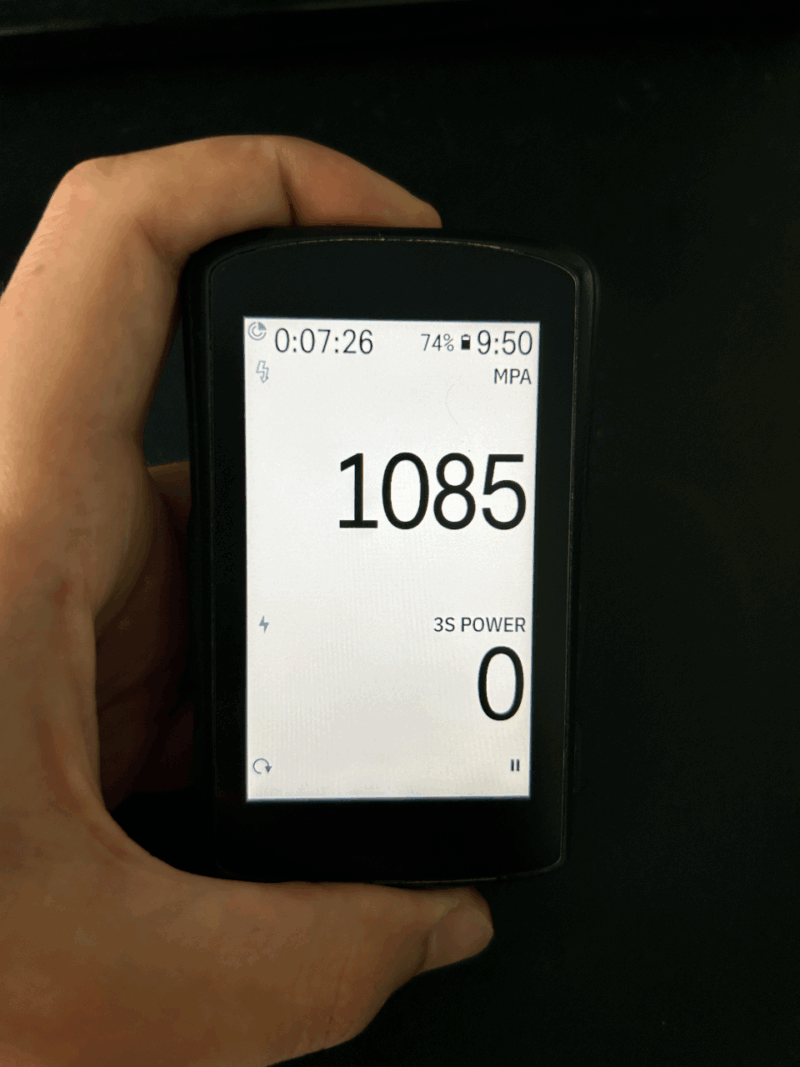
Related guide: Magic Buckets on Karoo: Setup + How to Use
Using Xert EBC During Your Ride
1) Start your ride from Karoo ride profile
Begin your ride from your Karoo profile screen — no need to launch Xert EBC via the extensions menu.
2) Tap MPA or XSS to open Xert EBC
During the ride, tap the MPA or XSS data field to launch Xert EBC in-ride.
3) Swipe through Xert EBC screens
Once inside EBC, swipe left/right to access Xert’s in-ride screens, such as:
- Magic Buckets (interval guidance, recovery guidance, Challenge Level gauge)
- Key performance metrics (MPA-focused data, TTE/TTR, Fat & Carb metrics, etc.)
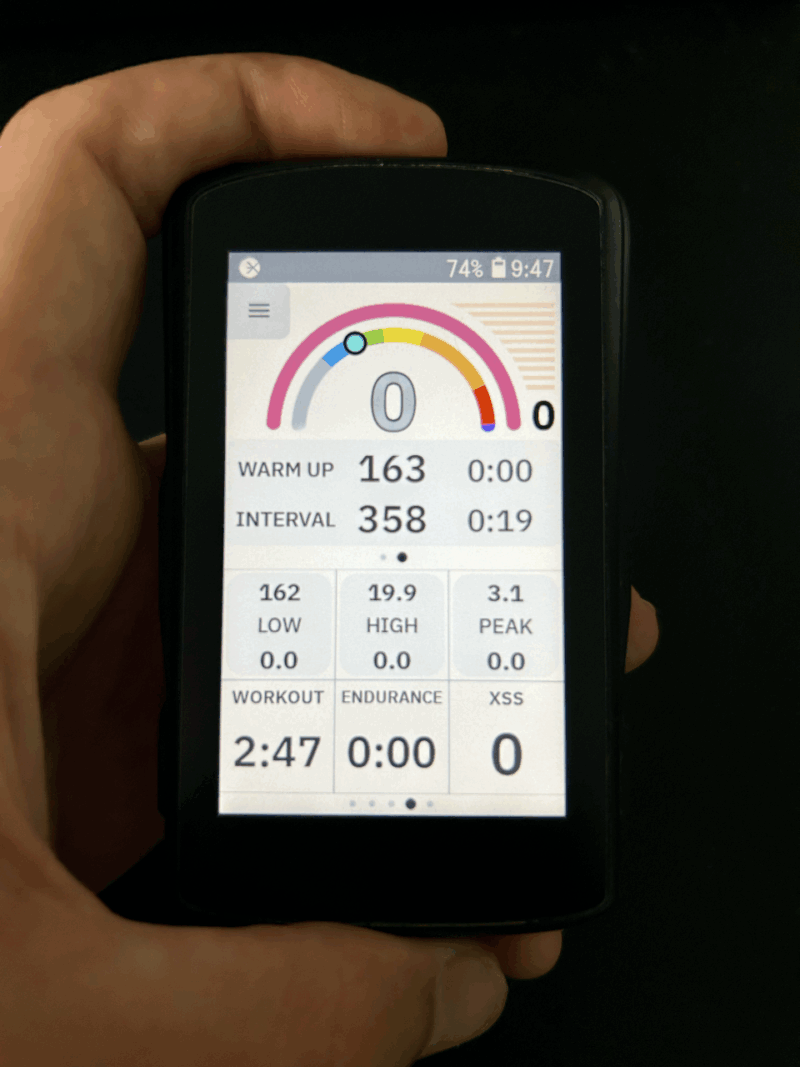
Tip: Some EBC screens allow you to tap a data field for more detail.
4) Using the EBC menus (Advanced)
You can access the menus in the EBC app by tapping the hamburger icon in the top left-hand corner of the ride screen. You can return to the ride screen by navigating back to the Activity area and selecting Continue.
5) Exit EBC and return to Karoo ride profile
To return to Karoo’s normal ride screens (map/navigation/default data pages) Swipe up, or press the back button / bottom-left button.
Note: There’s no need to pair sensors or record rides inside Xert EBC. Record your ride using Karoo’s native activity recording. Xert EBC will use the sensors already paired to your Karoo.
Xert SMART Workouts on Karoo (via Xert EBC)
Hammerhead Karoo does not currently support direct “workout push” from Xert the way Garmin or Zwift does. However, you can complete Xert’s SMART workouts on Karoo using the Xert EBC app/extension.
Step by Step:
- In Xert (web app), choose a workout and Send to Xert EBC.
- On your Karoo, open the Extensions menu and launch Xert EBC.
- In Xert EBC, go to the Activity tab. Your sensors should already be paired through Karoo.
- Tap Workout, then select your Recommended Workout.
- (Optional) Tap the Location cell to toggle Indoor vs Outdoor.
- When ready, press Start to begin the workout.
- When finished, swipe up and stop/save your activity. The ride will upload to Xert.
Audio cues (Interval tones)
Karoo doesn’t output tones through its built-in speaker for Xert EBC, but you can hear interval cues by pairing Bluetooth headphones to your Karoo before launching the workout. We recommend this for indoor training.
Note about syncing
Activities recorded with the Xert EBC extension sync directly to Xert; they are not synced to your Hammerhead account history in the same way as a Karoo-native recorded ride.
Common Questions (FAQ)
Why don't I hear beeps from the Xert EBC app?
The Xert extension doesn't have access to the native Karoo speaker, so interval tones cannot be heard audibly via the Karoo's speakers.
Does Karoo support Xert real-time features like Magic Buckets?
Yes—when using Xert EBC on Karoo, you can access compatible Xert screens in-ride.
Comments
0 comments
Please sign in to leave a comment.