
Best for: Athletes who want Xert’s training summary text and report images (Breakthrough, Workout, Forecast AI reports) to appear automatically on Strava.
Quick Answers
- To get reports on Strava, your activity must go from Xert → Strava.
- On the Sync > Strava page, enable 'Show Reports and Training Summary Data on Strava'. Check the box if you wish Xert to automatically forward processed activities to Strava. Leave it disabled if you wish to manually send your activities to Strava.
- For reports to post automatically, Xert needs to be the service that uploads the activity to Strava. If another app pushes the activity to Strava first (Garmin/Zwift/etc.), Xert can’t automatically attach the report image and summary text. You can add a visual report manually if you wish.
Step-by-Step
Step 1 — Enable Strava report syncing in Xert
- In Xert, go to Sync → Strava.
- Turn on:
- Show Reports and Training Summary Data on Strava
- Sync New Xert Activities to Strava
Step 2 — Ensure Your Recording Source is Connected to Xert
Make sure that Xert is receiving completed activities from the recording platform/device:
- Garmin: connect via Sync → Garmin Connect so Garmin activities upload to Xert.
- Wahoo: link your account via Sync → Wahoo so Wahoo activities upload to Xert.
- Zwift: connect via Sync → Zwift; completed rides sync to Xert (Zwift requires rides ≥ 2 km).
- Karoo: link via Hammerhead Connected Accounts; activities then sync to Xert.
Step 3 — Let Xert Push the Activity to Strava
Once the activity uploads to Xert, Xert will automatically:
- generate the training summary text, and
-
attach the relevant report image(s) (Breakthrough/Workout/Forecast AI, when applicable),
then push the activity to Strava.
What You’ll See on Strava
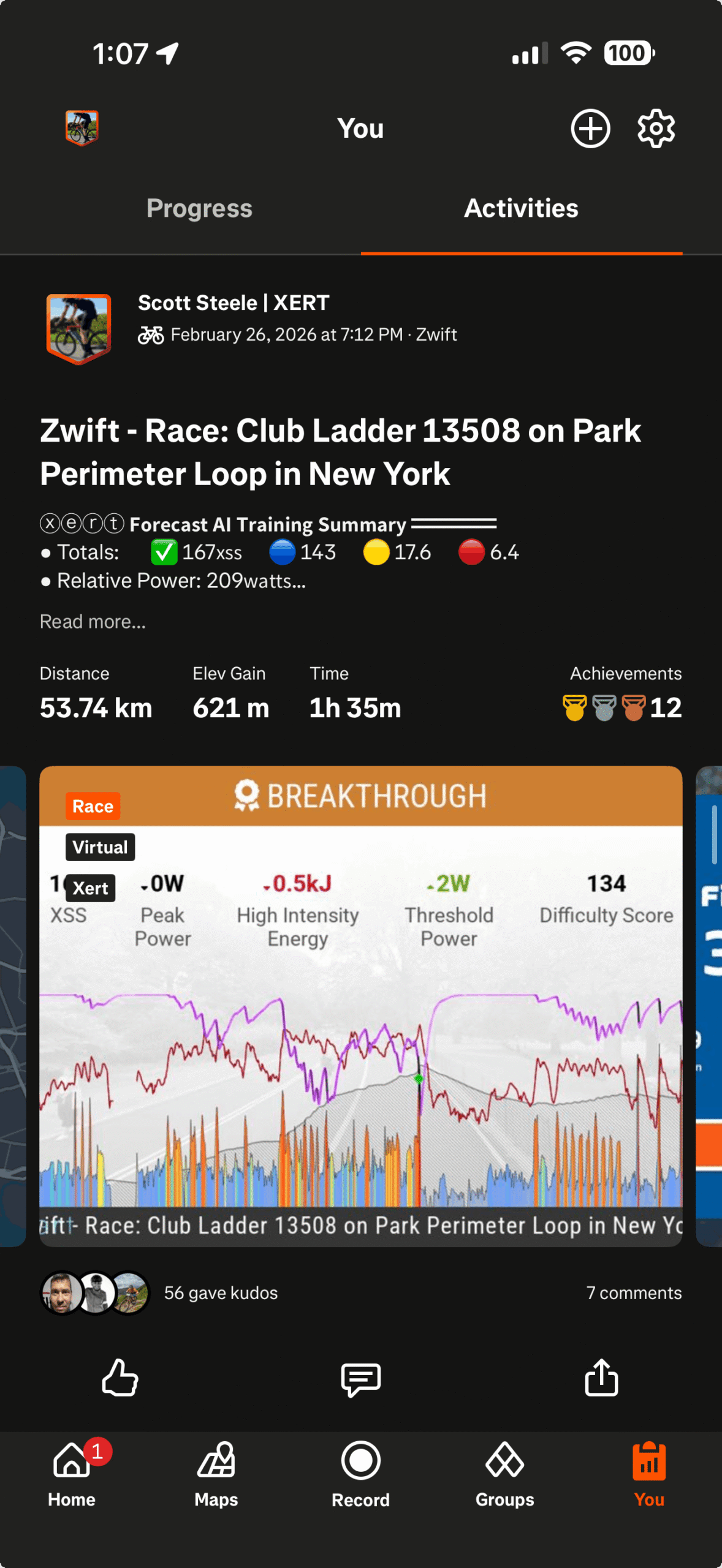
When the activity is uploaded to Strava via Xert, the summary text and report image will appear automatically. Xert will add:
- Training Summary text (XSS, Difficulty, estimated fuel metrics, etc.)
- Report images such as Forecast AI reports and an MPA chart overlay, when applicable.
Troubleshooting (FAQ's)
I don’t see my Xert Training Report on Strava
Most common causes:
- The activity was uploaded to Strava before it reached Xert (e.g., Garmin → Strava enabled).
- One of the toggles in Sync → Strava is off.
Fast fix checklist
- Confirm both toggles are enabled in Sync → Strava.
- Confirm the activity appears in Xert before it appears on Strava.
- If another platform uploads to Strava automatically, consider disabling that platform’s Strava upload so Xert can be the forwarder.
I want to manually upload a report image to Strava
You can generate report images directly in Xert:
- Open the activity in Xert
- Click the Breakthrough Report or Workout Report icon
- Download/save the image and upload it to your Strava activity manually
[Screenshot: Activity Details page with Report icon highlighted]
Caption: You can generate report images in Xert and upload them manually to Strava if needed.
Can I re-sync an activity to Strava?
Yes. You can re-send an activity to Strava from Xert using the Strava button on the activity card. You’ll find this on the Today page for recent activities, or by opening a past day in the Fitness Planner and selecting Review Daily Activities.
Related article: Re-send an Activity from Xert to Strava
Comments
0 comments
Please sign in to leave a comment.