
Best for: Athletes who dual-record, train across multiple platforms (Garmin/Zwift/Strava/etc.), or want to clean up activities before they count toward fitness and get posted to Strava.
In this guide: How activities sync into Xert, how duplicates work, how to choose the “master” activity, how to merge split files, and how to push a clean activity to Strava.
Quick Answers
-
Duplicates happen when the same ride reaches Xert from more than one source (e.g., Garmin + Strava + Zwift).
- Xert detects duplicates automatically and hides them to prevent double-counting.
- You can choose the Master activity (the file Xert uses for Breakthroughs, signature, XSS, and training load).
- You can merge split rides (warmup/ride/cooldown) into one clean activity.
- You can send the cleaned/merged activity to Strava to reduce clutter and include Xert summaries/reports.
Why This Matters
Xert is the hub of your training ecosystem. To deliver accurate fitness modeling and training recommendations, Xert needs a clean activity history—especially when multiple apps or devices record the same session. Activity Management tools help you keep the best file for training, hide the rest, and optionally forward a clean version to Strava.
1) How Activities get into Xert
Xert can import activities directly from many connected platforms like Garmin, Wahoo, Hammerhead, Zwift, Rouvy, MyWhoosh, and Strava.
Best practice: Whenever possible, sync activities to Xert from the original recording source (the device/app that created the activity file). This typically provides the most complete data and reduces duplicate imports.
Recommended setup
- Outdoor rides: Garmin/Wahoo/Karoo → Xert
- Indoor/virtual rides: Zwift/Rouvy/MyWhoosh → Xert
- Strava: optional; best used for historical imports
Related article: Integrations Overview & Data Flow
2) Duplicate Activities: Why They Happen & What Xert Does
Why duplicates happen
Duplicates are common when:
- You record on a head unit and a training app (e.g., Garmin + Zwift)
- You connect multiple import sources (e.g., Garmin → Xert and Strava → Xert)
- You dual-record using multiple power sources (trainer power + pedal power)
What Xert does automatically
Xert will:
- detect duplicates, and
- hide identified duplicate rides so they don’t double-count toward your training load and progression.
3) Choosing the “Master” Activity
When Xert does detect duplicate activities, the first processed activity is used as the "Master", while detected duplicates are hidden by default. Xert uses the Master activity for:
- Breakthrough and Near-Breakthrough detection
- MPA, XSS, Difficulty, and training load calculations
- Fitness Signature updates / extraction
When you should change the master
Choose a different master if:
- one file has power spikes or dropouts
- one file uses a better power source (more accurate/consistent)
- one file is missing key data (power/HR/cadence)
- you want the file with cleaner data to drive progression (even if another has nicer GPS)
Rule of thumb for selecting the best file
Keep the file with:
- the most reliable power stream (fewest dropouts/spikes)
- the correct sensor source (your preferred power meter/trainer)
- the best overall data completeness
How to Change the Master Activity
- On the Today page (or use the 'Review Daily Activities' button on a past day in the planner where duplicate activities exist)
- Expand the duplicates list with the drop-down docker
- Select Swap Chosen Duplicate on the file you want Xert to use as the Master
4) Hidden vs. Visible Activities
Similar to duplicates, a hidden activity is excluded from:
- your Fitness Planner
- your XPMC/Progression charts
- training load calculations
- Breakthrough/signature extraction
Hiding an activity might be helpful when you wish to keep a file for your records (GPS, route, backup) but don’t want it used for training metrics.
Tip: Hidden activities are often duplicates, but you can also hide activities manually if they contain incorrect data or shouldn’t affect your training history.
5) Merging Activities
Sometimes a single training session might end up as multiple, smaller activity files. For example:
- warmup activity + main ride/race + cooldown (very common indoors)
- separate recordings due to device restarts or crashes
- bike computer battery died & activity recording was continued from another device (e.g. Xert EBC app)
- mid-ride pauses that created multiple files
What Merging does
When you merge two (or more) activities:
- Xert creates one combined activity
- the individual activities become hidden
- you get a cleaner activity history and a cleaner Strava feed if you forward merged activities
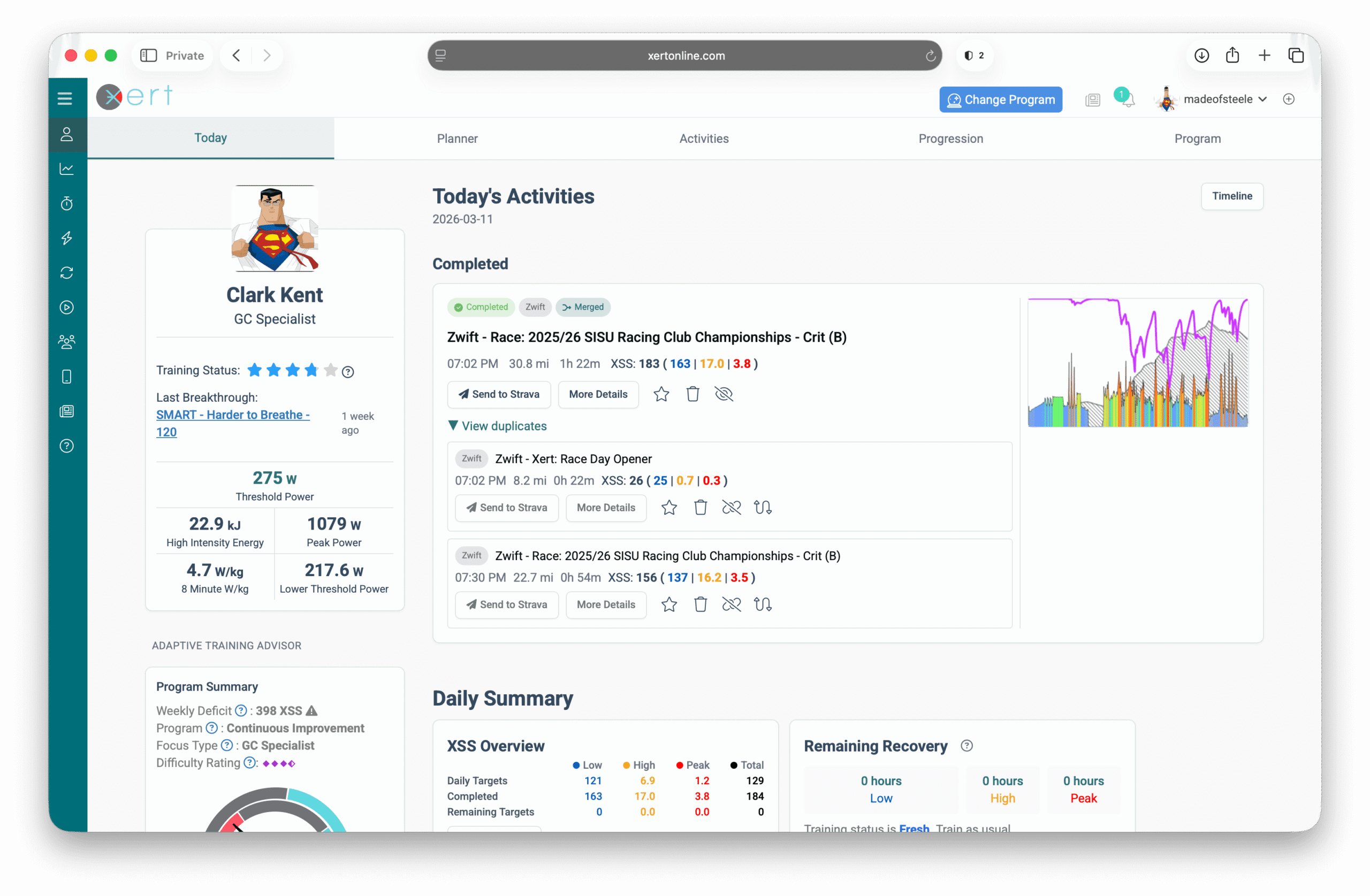
How to Merge Activities
- Head to the Today page (or from the 'Review Daily Activities' button on a past day in the Fitness Planner view)
- Select the 'Merge Activities' option and select the activity files you want to merge
- Choose Continue
- Confirm the merge & rename your ride, if desired
- Save
Important note: Merging requires original activity files (e.g., FIT). If an activity only came from Strava data (without the original file), merging may not be available.
Related article: How to Merge Activities in Xert
6) Sending Completed Activities to Strava
You can share activities to Strava in two ways:
Option A: Automatic Forwarding
Enable Sync New Xert Activities to Strava (Sync → Strava). Xert will automatically forward your processed activities to Strava automatically. This includes activities recorded using the Xert EBC app or activities recorded from an external app and synced to Xert for analysis.
Option B: Manual sending
If you want to de-duplicate or merge first, disable automatic forwarding and send activities manually after you’ve curated them.
[Screenshot: Today page activity card with “Send to Strava” button highlighted]
Caption: “Use the Strava button from the Today page to send (or re-send) an activity after cleaning it up.”
Pro tip: Many athletes disable direct Garmin → Strava or Zwift → Strava uploads and let Xert forward activities instead, so Strava includes Xert summaries and reports (optional).
Related: Xert + Strava Integration
Common Questions (FAQ)
Why did the same ride import twice?
It likely reached Xert from two sources (for example: Garmin and Strava, or Zwift and Garmin). Xert will typically detect duplicates and hide them automatically.
This can also happen if you re-upload or re-sync the same activity to Xert several times.
Why do duplicates sometimes have different XSS?
Even if two files represent the same ride, their power data can differ (trainer vs power meter, smoothing, dropouts). Since XSS depends on your power stream and fatigue modeling, different data can produce different XSS. Choose the most accurate file as the Master.
Can I merge rides that came from Strava?
Usually not. Strava imports often don’t include the original FIT file, and merging requires original files. For merging, sync from the original source (Zwift, Garmin, etc.) or upload FIT files directly.
Will deleting an activity on Strava delete it in Xert?
No. Strava and Xert manage activities separately. If you want it removed in Xert, delete or hide it in Xert.
Related Resources
- Integrations Overview & Data Flow
- Xert + Strava Integration
- How to Verify Your Fitness Signature — and what to do if it seems wrong
- Troubleshooting: Duplicate activities and mismatched XSS [link]
Comments
0 comments
Please sign in to leave a comment.