
Merging activities lets you combine two (or more) activity files into one complete activity in Xert. This is useful when a ride is split into multiple files—like separate indoor sessions, mid-ride device failures, or warmup/ride/cooldown files that belong together.
Common examples:
- Your head unit died mid-ride and you recorded the rest on a secondary device
- Virtual cycling app created separate warmup + ride/race + cooldown activity files
- You want multiple short rides to count as one continuous session for training analysis
Before You Merge
- Merge activities that are the same sport/type (e.g., Cycling + Cycling).
- Merging affects training metrics and progression, because Xert will treat the result as one continuous ride.
- Merging past activities can trigger a “trickle-down” recalculation of activities after that date.
Merge Activities From the Today Page
Step 1 — Open the Today page
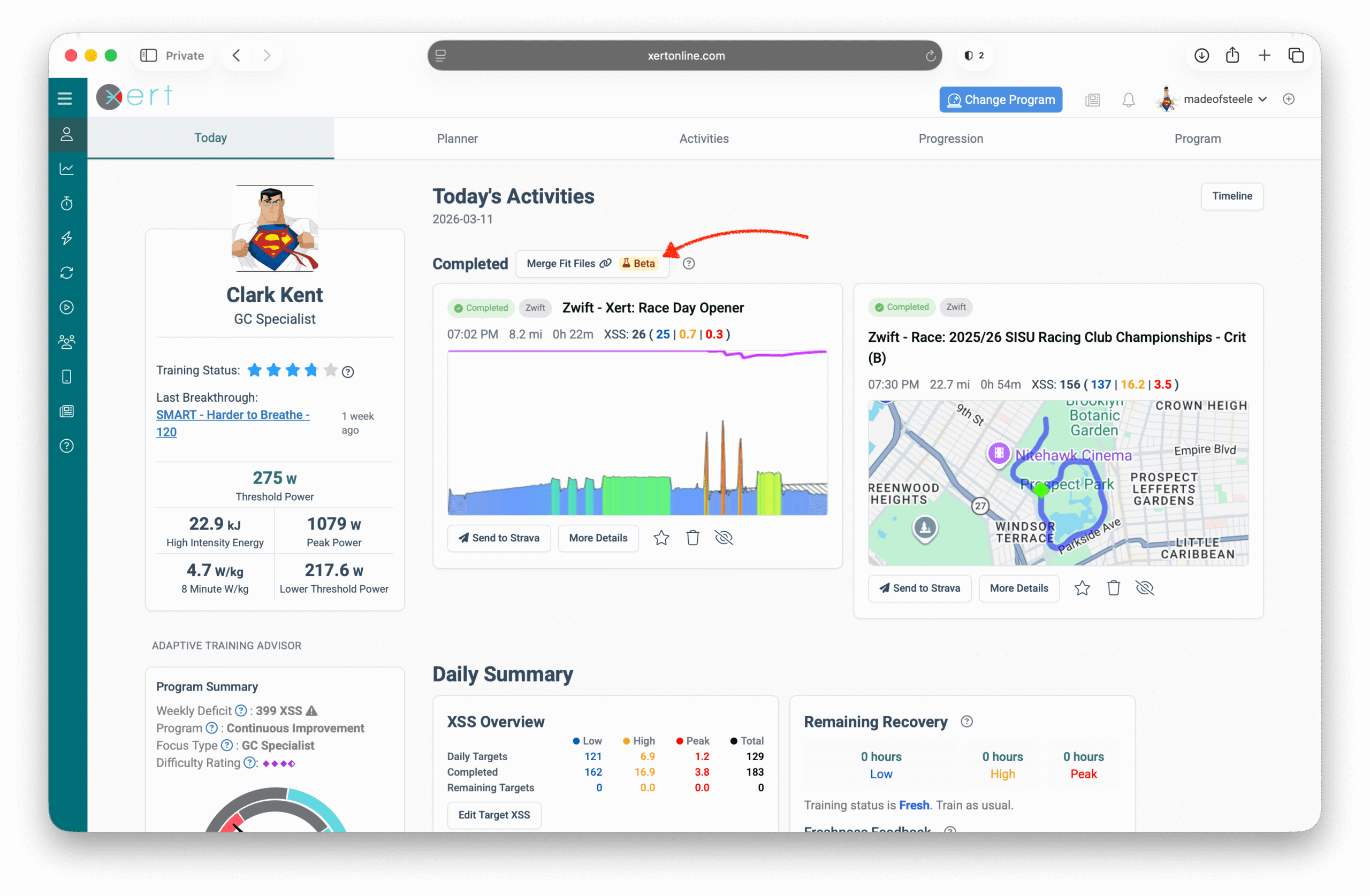
Scroll to view your Completed activities and click Merge Fit Files button.
Step 2 — Select the activities you want to merge
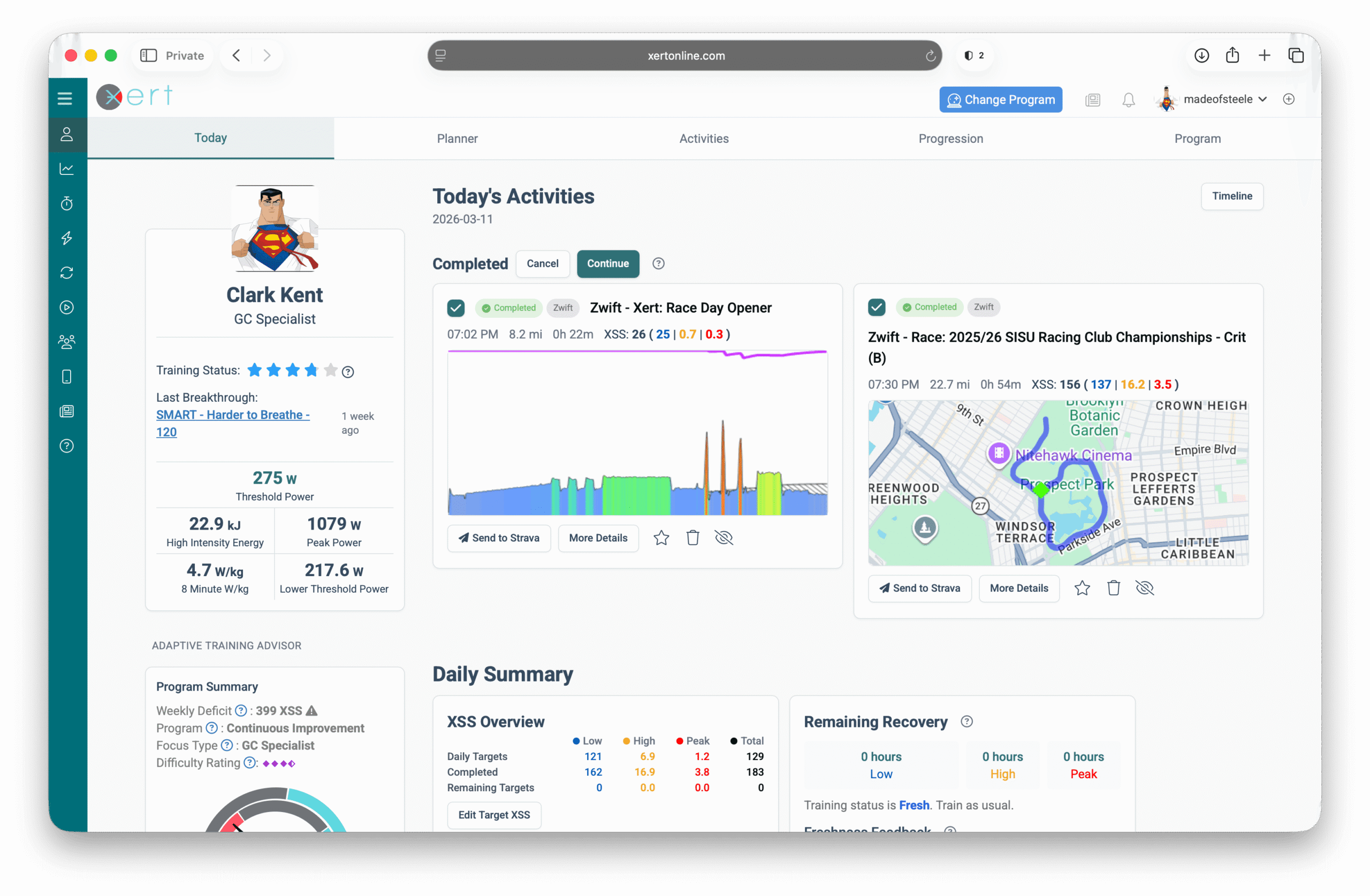
Use the checkboxes to select your activities, then click Continue.
Step 3 — Name the merged activity (optional)
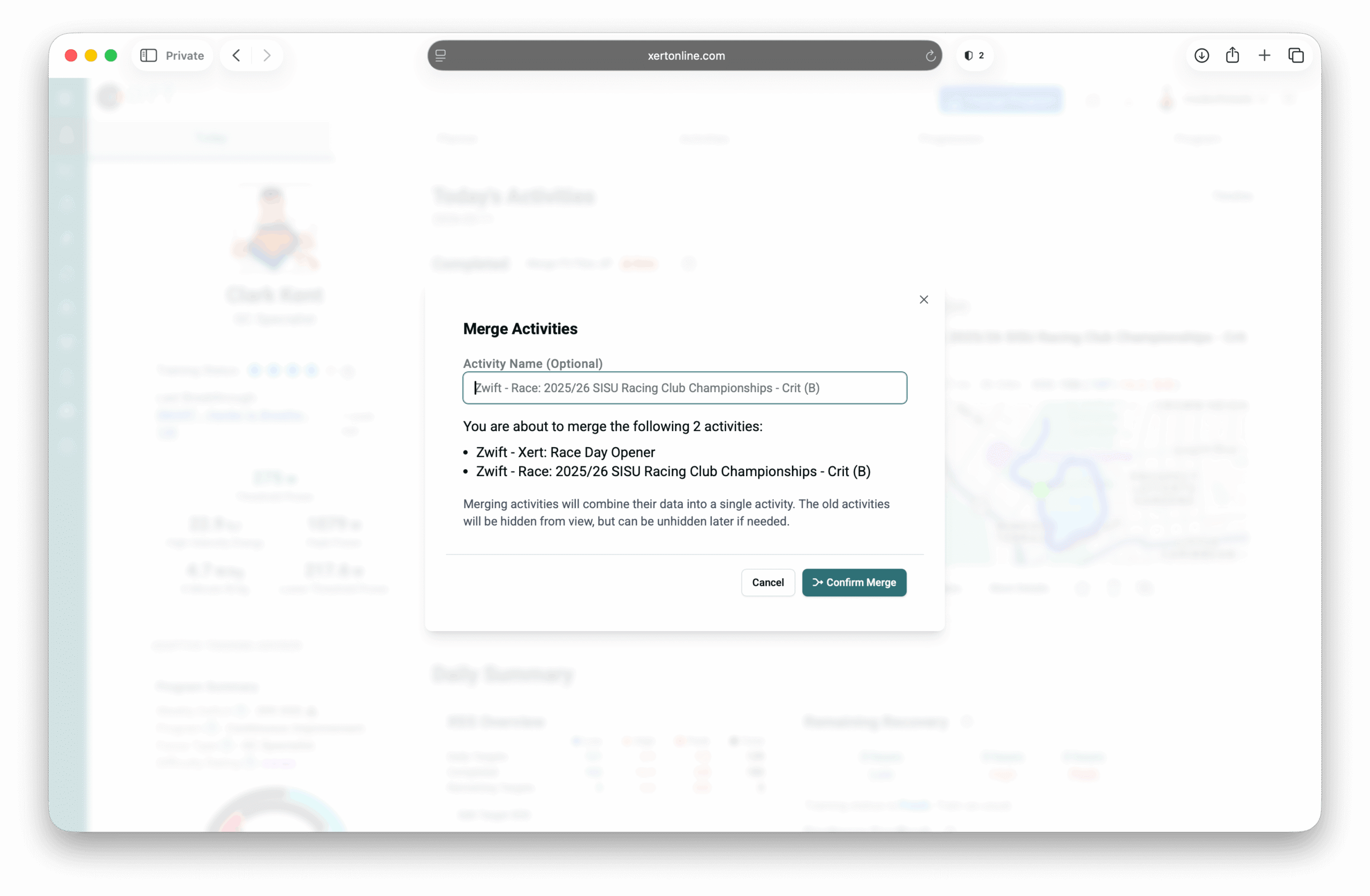
You’ll be prompted to enter a title. If you leave it blank, Xert will use the title of the longest activity by default. When finished, click Confirm Merge.
Step 4 — Xert creates the merged activity
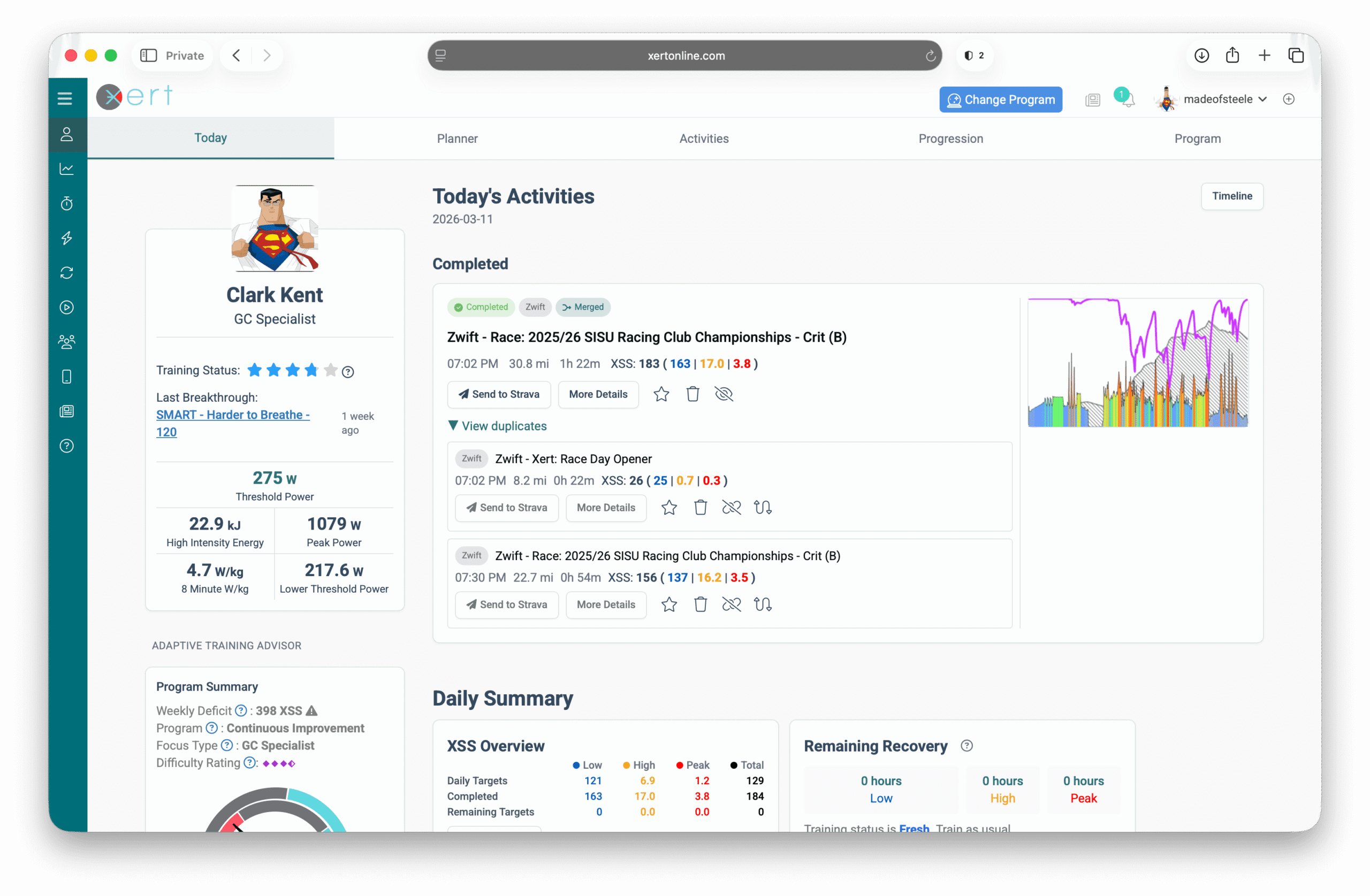
Xert will stitch the files together and process the new activity. The original files will be marked as duplicates of the merged activity and can be expanded under the Duplicates dropdown.
Merge Activities From the Fitness Planner
Step 1 — Open the Fitness Planner
Navigate to the date of the activities you want to merge & click Review The Day’s Activities (magnifier icon). This will bring up the activity list for that day.
Step 2 — Click Merge Fit Files
Then follow the same steps as above: Select Activities → Continue → Confirm Merge.
Note: Merging older activities may trigger a trickle-down recalculation of activities after that date, since the training timeline has changed.
What Happens After a Merge?
- The merged file becomes the master activity used for training metrics and progression.
- The original files are kept but shown as duplicates under the merged activity.
- If you push activities to Strava, you can optionally send the merged activity (helpful for reducing Strava clutter).
Common Questions (FAQ)
Will merging change my XSS / training load?
It can. Since the ride is now treated as one continuous activity, fatigue modeling and strain calculations may change slightly.
Can I merge activities that came from Strava?
Usually no. Strava often sends activity data without the original .FIT files, and merging requires the FIT files. If you need to merge, sync directly from the original source (Garmin/Zwift/etc.) or upload the FIT files manually to Xert.
Can I Undo a Merge?
To undo a merge, you’ll delete the merged “master” activity and then unhide the original activities.
Steps:
- Find the merged activity using the Today page or the Fitness Planner (Review the Day's Activities).
- Delete the merged activity.
- Expand the Duplicates dropdown (or open the day in the Planner and select Review Day’s Activities) and locate the original files.
- Unlink or Unhide the original activities so they appear again in your Planner/Activity list.
Note: Undoing a merge will trigger a recalculation of training metrics, especially if the merged activity was older.
Related Articles
- Activity Management in Xert: Duplicates, Master Activity, Merging, and Strava Sync
- Xert + Strava Integration
- Troubleshooting: Activities Not Syncing to Xert [link]
Comments
0 comments
Please sign in to leave a comment.