
This article walks you through creating a Forecast AI (XFAI) training plan, step by step. Forecast AI builds an outcome-driven plan around your fitness, schedule, and target — adapting as you execute it.
If you're new to XFAI and want to understand how it works, start with Training with Xert Forecast AI (XFAI) first.
A note before you start: XFAI setup has a few decisions to make, but you don't need to get everything right on the first try. You can re-run the forecast as many times as you want, experimenting with settings and targets until you have a plan that works for you. Most users iterate a few times before settling on the plan they follow.
Before You Begin
Two prerequisites worth confirming:
- Your Fitness Signature should be reasonably current. XFAI's projections rely on your signature being accurate. If it's been weeks since your last breakthrough and you suspect your signature is stale, consider getting a breakthrough first. See How Xert Learns Your Fitness Signature.
- You should have some recent training history in Xert. XFAI uses your historical training loads and breakthroughs to forecast forward. New accounts with little data will get rougher predictions.
Opening Forecast AI
- From the main menu, click Program.
- Click Modify Program.
- Select Forecast AI as your training mode.
You'll then choose between three Forecast AI modes:
- Goal — improve your fitness at a specific power duration (e.g., your 5-minute power)
- Event — prepare for an upcoming event based on its type, terrain, and duration
- Race — train to replicate or improve on a specific past performance, library event, or course file
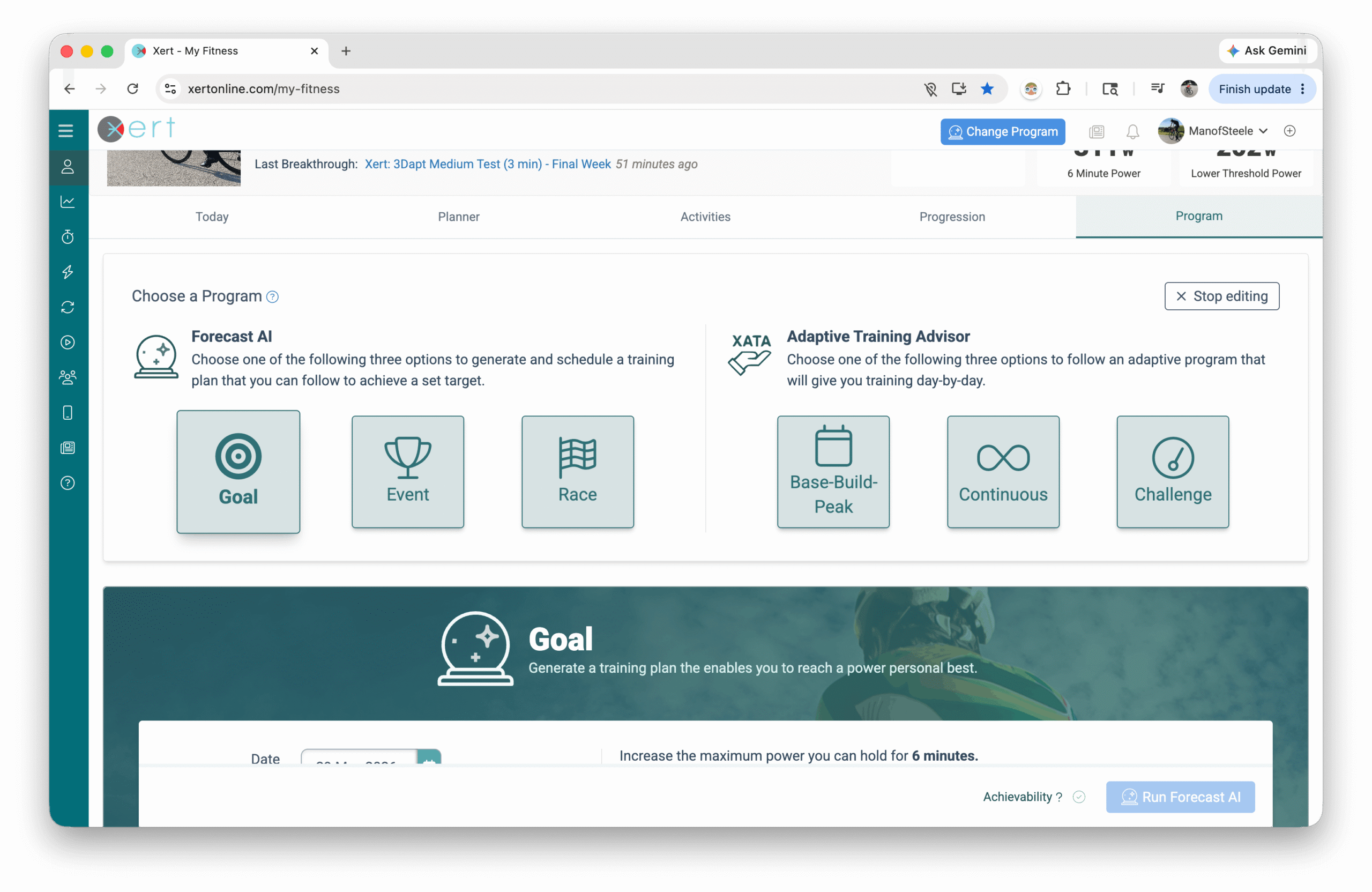
Each mode has its own setup flow, covered below. Pick the one that matches your goal and skip to that section.
Setting Up a GOAL Plan
Use Goal mode when you want to improve your fitness at a specific power duration, without a specific event in mind.
Step 1 — Set Your Target Date
Pick a target date for when you want to reach your goal. 8-12 weeks is a reasonable starting point if you don't have a specific date in mind. Longer plans give you more room to progress; shorter plans are more demanding.
Step 2 — Choose Your Focus
Use the Focus slider to choose a duration to improve at, from 2 minutes (Road Sprinter) to 20 minutes (Sprint Time-Trialist). This is the point on the power curve your training will optimize for.
For more on focus and athlete types, see Focus Duration & Type.
Step 3 — Set Your Target Increase
Use the target increase slider to specify how much you want to improve your power at the chosen focus duration. As you move the slider, watch the projected changes to your Low, High, and Peak training loads on the right side — these are the changes XFAI estimates you'll need to make to hit your target.
Xert estimates what's achievable, but it can't confirm until you actually run the forecast. Aim a bit higher than what feels easy — you can always pull back if the forecast doesn't generate.
Step 4 — Choose Specificity
The Specificity setting controls how XFAI tries to reach your target:
- Polar (recommended for most users) — prioritizes improvements in your Threshold Power (FTP). Your shorter-duration power improves as a byproduct.
- Mixed — balances FTP improvements with direct improvements to your HIE and Peak Power.
- Pure — emphasizes direct improvements to HIE and Peak Power.
For short focus durations (2-3 minutes), Polar is usually the most achievable approach. Mixed or Pure at short focus durations may require more high-intensity training load than your body can absorb in a single plan.
Step 5 — Set Max Weekly Hours
Use the Max Weekly Hours slider (4h to 28h) to cap your weekly training time. This isn't the maximum for every week — it's the most time XFAI will schedule on any week. Setting this on the generous side gives XFAI more flexibility to build an achievable plan.
Step 6 — Configure Weekly Availability
Click Weekly Availability to expand the availability editor. For each day:
- Availability — mark yourself as available for training or use unavailable if you wish to take the day as a rest day
- Time of day — when you typically train
- Duration — how long you can train
- Flex / Fixed — Flex lets XFAI use up to 25% more time than specified if needed. Fixed enforces a strict cap (useful for hard stops like work or family commitments).
Xert pre-fills these from your historical training patterns, but you can override any value.
When you're satisfied with your settings, jump to "Running Your Forecast" below.
Setting Up an EVENT Plan
Use Event mode when you have a specific event coming up — a gran fondo, a race, a multi-day tour — and want to prepare for it.
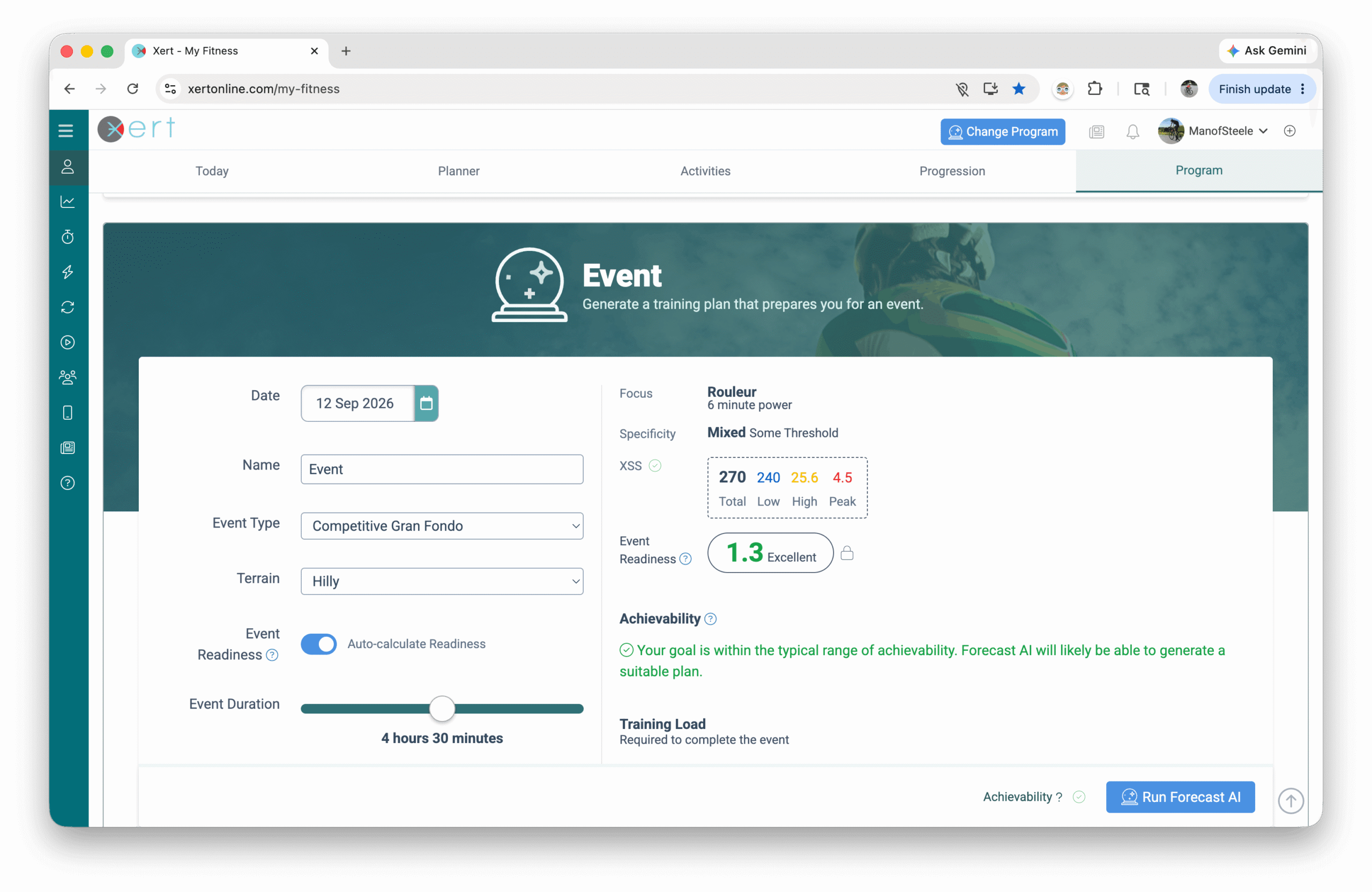
Step 1 — Set Event Date and Name
Pick the date of your event and optionally give it a name (defaults to "Event").
Step 2 — Choose Event Type
Select from the list of event types — Road Race, Criterium, Gravel Race, Gravel Recreational, Competitive Gran Fondo, Recreational Gran Fondo, MTB-XC, MTB-XCM, Cyclocross, Track events, Competitive Group Ride, Friendly Group Ride, and more.
Step 3 — Select Terrain
Choose the overall terrain — Flat, Rolling, Hilly, or Mountainous. Combined with event type and duration, this shapes the training load XFAI predicts you'll need.
Step 4 — Set Event Duration
Use the Event Duration slider to specify how long you expect the event to last. The event type, terrain, and duration together determine the Low/High/Peak XSS XFAI predicts the event will require — which in turn drives the training plan it builds.
As you adjust the settings, watch how the projected XSS values change on the right side of the screen. You can also reference past races/events to estimate your expected XSS.
Step 5 — Event Readiness
Xert automatically calculates an Event Readiness value based on your current training loads, time to the event, and target training loads. Lower readiness scores (closer to 1) indicate better preparedness and more durability — but reaching an excellent readiness score requires more training.
There's a trade-off here: you can do long or demanding events with less training, but you'll have a lower readiness score going in. See Event Readiness (ER) for details.
Step 6 — Set Max Weekly Hours and Availability
Same as Goal mode — set your weekly training cap and configure your daily availability. See "Configure Weekly Availability" under Goal Mode above.
When ready, jump to "Running Your Forecast" below.
Setting Up a RACE Plan
Use Race mode when you want to train for a specific course or past performance. Race AI is the most data-driven of the three modes — you provide a target performance (file, library event, or past activity), and XFAI builds a plan to match or improve on it!
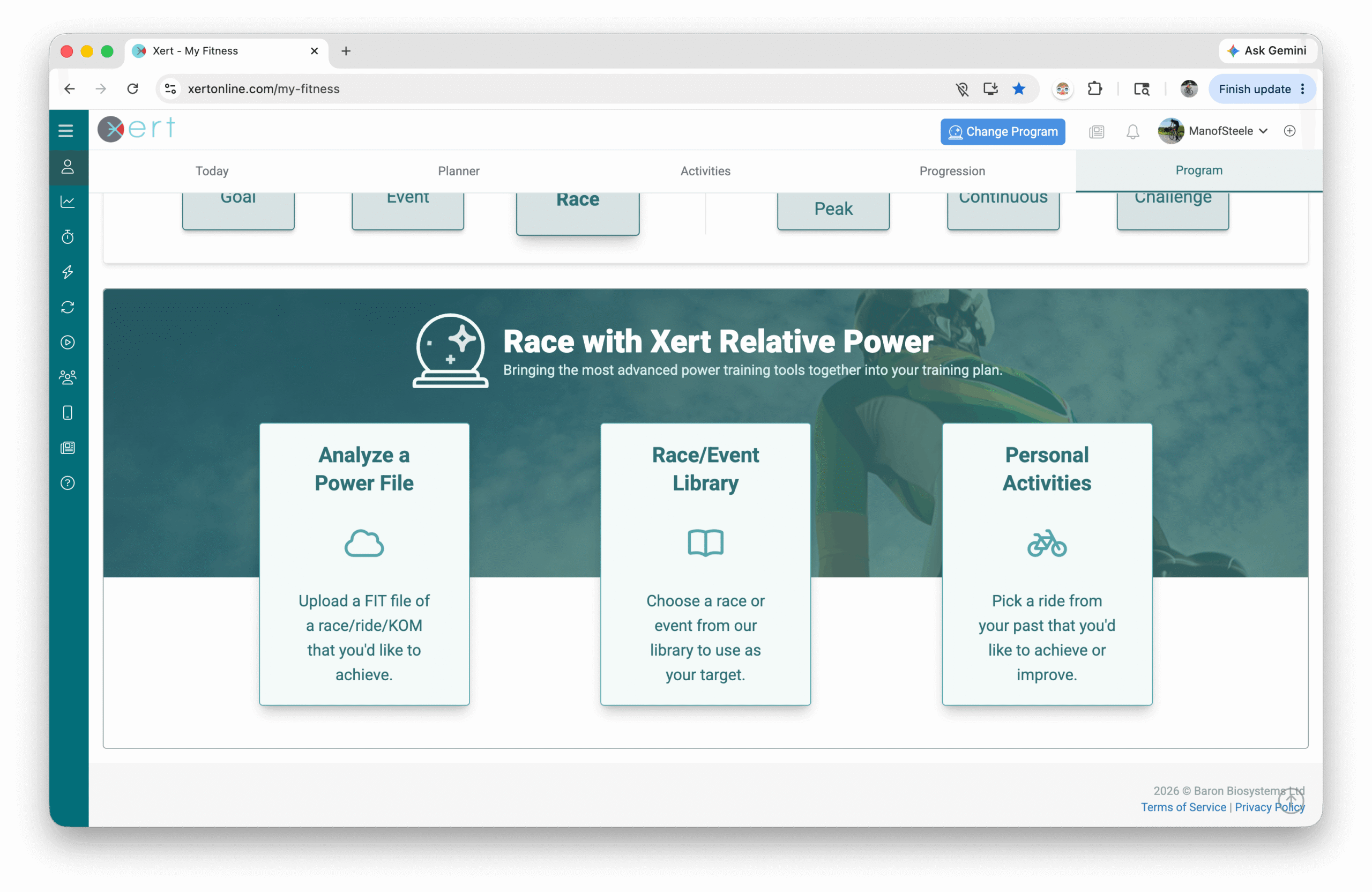
You have three options for specifying your target:
- Analyze a Power File — upload a .fit file of a race, ride, or KOM you want to achieve. The file needs to have power and elevation data, and the original rider's weight.
- Race/Event Library — choose a race from Xert's library of events (gran fondos, gravel races, criteriums, etc.).
- Personal Activities — pick a past activity from your own history and use it as a template.
After selecting one of these, you'll set your target date, target average speed (raise this above the original if you want to improve on it), and a few optional limits (max difficulty score, max carb rate). You can also set your Event Readiness target and an optional race-day target weight.
The right side of the screen shows the achievability of your race plan in terms of power (MPA), carb rate, event readiness, difficulty, and weekly hours. If any of these are flagged as unachievable, Xert estimates when the race would become achievable with your current settings.
For more detail on Race AI specifically, see How to Use Race AI to Improve on a Previous Performance.
Adjusting Advanced Settings
Below the mode-specific setup is a section for advanced settings that affect all three modes:
- Periodization Level — moving this to the right gives you more "base" training early, with high intensity later. Moving it left moves you into a build phase sooner.
- Polarization Level — controls the maximum recovery time between high-intensity efforts. The default (4:1) can schedule larger high-intensity sessions roughly every 5 days. Moving it left gives smaller, more frequent doses of intensity.
- Recovery Demands — adjusts how aggressively XFAI builds in recovery. Moving left = less recovery (more aggressive). Moving right = more recovery (more conservative).
- XSS per Hour — controls training density. The default (100) works for most users. Moving left limits how much training fits into your available time; moving right packs more training into less time but requires harder workouts.
These can be tweaked any time, not just at initial setup. Reasonable defaults are applied automatically — most users don't need to change them until they've followed XFAI for a while and want to fine-tune.
For more on each setting, see the linked glossary entries: Periodization, Polarization, Recovery Demands, XSS Per Hour Preference.
Running Your Forecast
When you've set up your plan, click Run Forecast AI at the bottom of the screen.
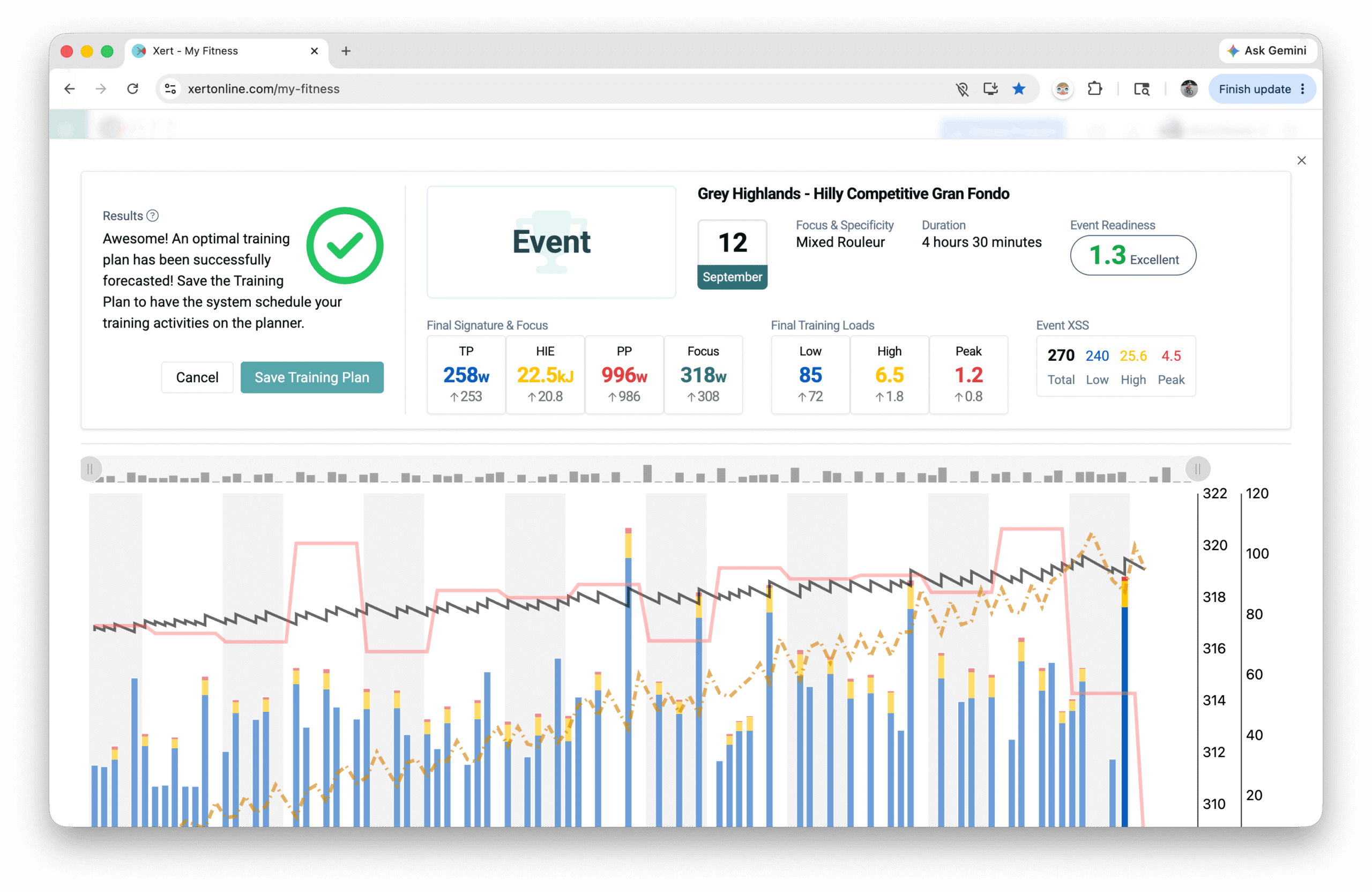
Xert begins building your plan, scheduling Low, High, and Peak XSS day by day. You can watch the matchsticks appear and adjust as XFAI works through your training availability and target.
For Event and Race modes, XFAI schedules your taper week first, then works backward to today. For Goal mode, XFAI starts from today and builds forward.
When XFAI Says Your Plan Is Unachievable
If Xert tells you the plan is "unachievable," don't panic — and don't abandon the plan. Unachievable means XFAI flagged at least one day with an identified issue, not that the plan is impossible.
Look for magenta-outlined matchsticks in the planner. Hover over them to see what's wrong. Common issues include:
- Training time exceeds your available time on that day
- High-intensity training scheduled when you're projected to be tired
- Training scheduled when you're projected to need recovery
You have three options:
- Adjust the settings or target and re-run the forecast. Even small changes (an extra hour of availability, a slightly later target date, a softer goal) can resolve the issues.
- Save the plan anyway if the flagged days are minor — XFAI's duration estimates are conservative, and you may complete the training in less time than projected.
- Ask support if you're stuck. Contact support@xertonline.com and we'll help you work through it.
Even if Xert says your plan is technically achievable but "tight," remember that training durations are estimates. Doing slightly harder workouts (which the plan recommends) often shortens the actual time required.
After You Save Your Plan
Once you've generated a plan you're happy with, save it. Forecast AI applies the plan to your planner, and your daily recommendations start following the forecast.
For day-to-day use — opening the Today page, choosing how to train each day, adapting the plan as you go — see Training with Xert Forecast AI (XFAI).
Common First-Plan Questions
"Xert says my plan is unachievable — what do I do?"
See "When XFAI Says Your Plan Is Unachievable" above. The short version: look for magenta matchsticks, adjust settings or targets, and re-run. Or save the plan as-is if the issues are minor.
"My Goal plan doesn't show any fitness increase"
Move the target increase slider further to the right. You can even target an increase beyond what Xert thinks is currently possible — sometimes the forecast can find a way that the estimate didn't predict.
"Xert says I need more training time, but I'm time-crunched"
Large increases in Low Training Load typically require more time (volume builds Low TL most efficiently). If you can't add time, try:
- A shorter Focus Duration (try 5-minute focus instead of 20-minute)
- Mixed Specificity instead of Polar
- A longer target date to spread the work out
"Can I have multiple races in my planner at once?"
XFAI focuses on one target event at a time. If you have multiple events, use your most important one as the target ("A" race), and pin smaller "B" races along the way as activities that contribute to your buildup.
"What about multi-day events or stage races?"
See Training for Multi-Day Events and Stage Races with Xert.
A Final Note on Experimenting
XFAI is a tool, and like any tool, it benefits from experimentation. Most users don't get the perfect plan on their first try — and that's fine. You can re-run the forecast as many times as you want, with different targets, settings, and availability, until you have a plan that fits your life and your ambition.
If you get stuck or aren't sure how to proceed, contact support@xertonline.com. We're happy to help you work through your specific situation.
Related Articles
- Training with Xert Forecast AI (XFAI)
- Choosing the Right Training Plan: XATA vs Forecast AI (XFAI)
- Focus Duration & Type
- Event Readiness (ER)
- How to Use Race AI to Improve on a Previous Performance
- Training for Multi-Day Events and Stage Races with Xert
- Periodization • Polarization • Recovery Demands • XSS Per Hour Preference
Comments
0 comments
Please sign in to leave a comment.