
MPA (Maximum Power Available) is Xert’s unique way of visualizing fatigue and maximal efforts inside your ride. Instead of relying on averages, MPA lets you see when you were truly near your limit, how hard efforts affected you, and whether your activity expressed (or updated) your Fitness Signature.
Best for: Understanding “how hard was this really?”, reviewing breakthroughs, and learning what kind of training your ride actually was.
Quick Answers
- Power (Multi-coloured) vs MPA (Magenta): When your power approaches MPA, you’re near your limit.
- Breakthrough: Typically happens when your power reaches MPA
- No breakthroughs? That’s normal — many rides are sub-maximal and still valuable training.
- Focus & Specificity: Tell you what kind of strain mix your ride contained (endurance vs punchy vs mixed).
Step 1: Open the Activity Details page
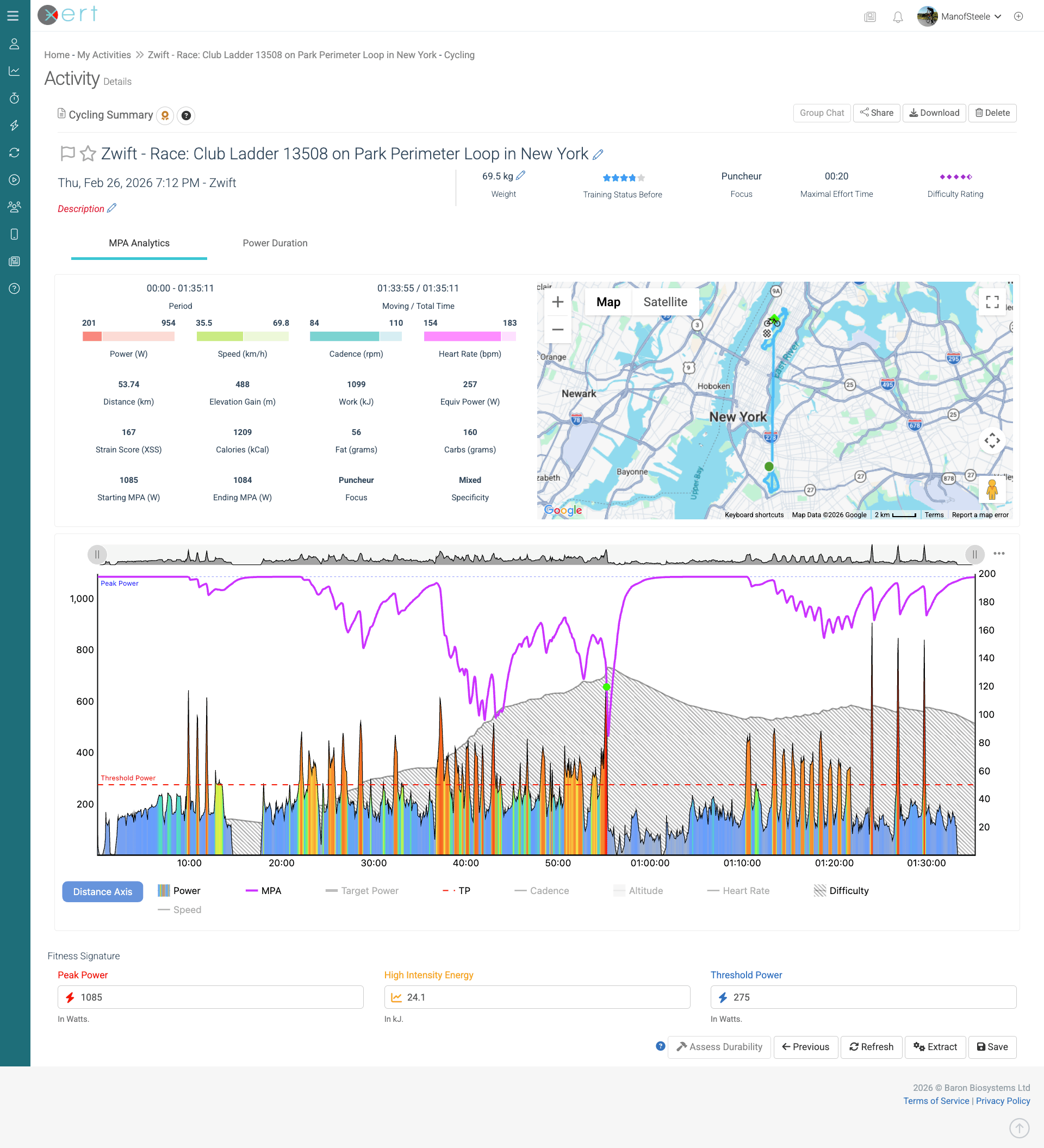
The Activity Details page brings everything about a ride into one place:
-
Summary Stats: duration, distance, power, HR, XSS, & map, if applicable
- Fitness Signature: TP, HIE, and PP (and whether it changed after the ride)
- Focus & Specificity: what kind of training this activity represents
- MPA Chart: the core visual
- Additional Tools: star/favourite, flag bad data, sharing options, and advanced analysis tabs
Step 2: Start with the MPA Chart
Once you get familiar with Xert, you’ll find the MPA chart tells the “story” of a ride far faster than average power or time-in-zones. With one glance, you can see where the ride got hard, where you recovered, and where you pushed near your limit.
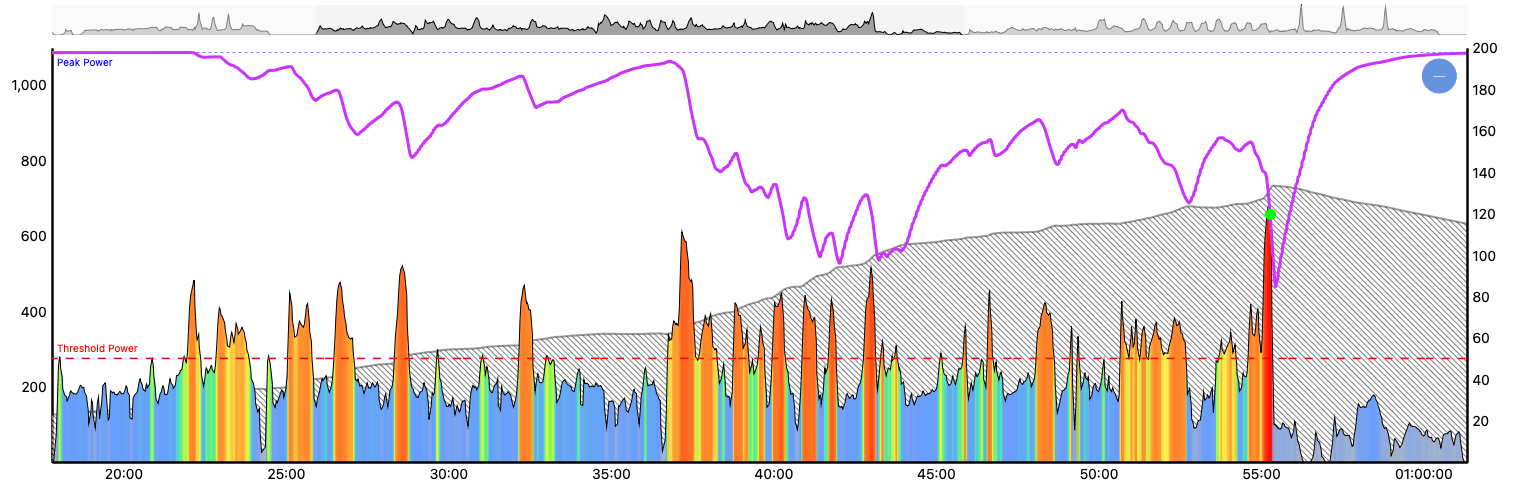
Key elements of the MPA chart
- Power (colour-coded): your actual power (Xert commonly displays a smoothed value such as 5s power by default).
- MPA (Maximum Power Available): your predicted “ceiling” at that moment based on fatigue.
- Difficulty (optional overlay): shows how demanding the ride becomes during repeated or sustained hard efforts.
- Optional data: Heart Rate, Cadence, Speed, Altitude, etc. Toggle these on/off using the chart legend.
How to Interpret the Chart
- Power far below MPA: you’re comfortably under your limit
- Power approaching MPA: very hard work — high staring, near your limits
- Power touches MPA: a maximal effort; often associated with a Breakthrough/Near-Breakthrough effort
Key idea: MPA changes constantly as you fatigue and recover. That’s why Xert can recognize maximal efforts even when average power doesn’t look special.
Step 3: Identify Key Moments in the Ride
Use the MPA chart to quickly find the efforts that mattered most:
- Look for steep drops in MPA during hard efforts above TP
- Look for moments where MPA approaches your Power (near-maximal efforts)
-
Zoom in on decisive segments:
- Drag the timeline handles above the chart, or
- Click-and-drag on the chart to zoom (use Minus button to reset the zoom)
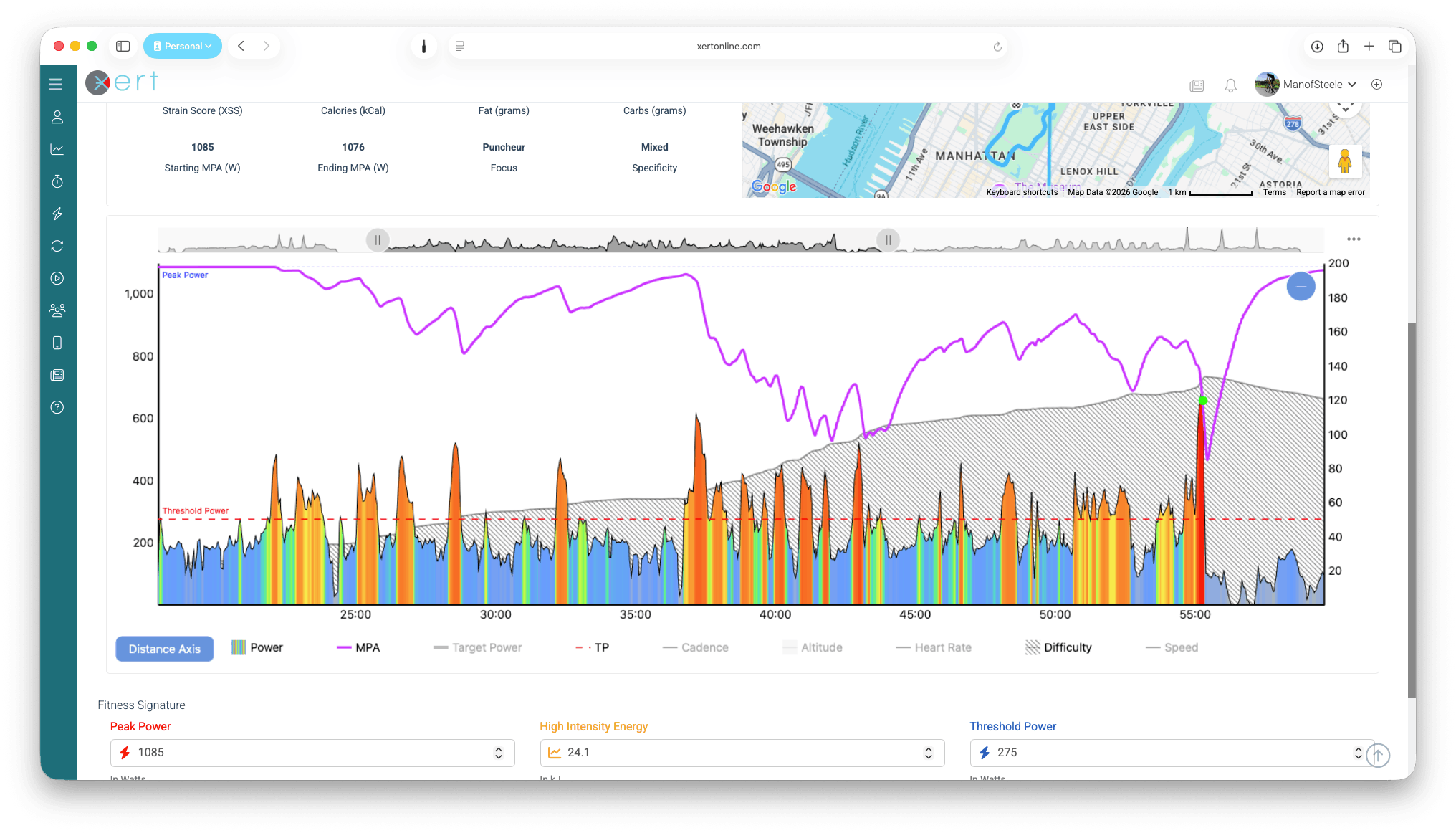
What a Breakthrough looks like
A breakthrough effort often shows:
- MPA dropping toward your power during a hard effort
- Power meeting/exceeding MPA near the end of the effort
Important note: Real-time alerts on devices are estimates. Final Breakthrough confirmation happens after server analysis.
Step 4: Check if the activity changed your Fitness Signature
If the activity resulted in a Breakthrough or Near-Breakthrough, you’ll see a color-coded badge next to the activity summary at the top of the page.
- Click the badge to generate a Breakthrough Report you can save or share (great for Strava).
- Click the (?) next to the report to view the specific changes to TP, HIE, and/or PP.
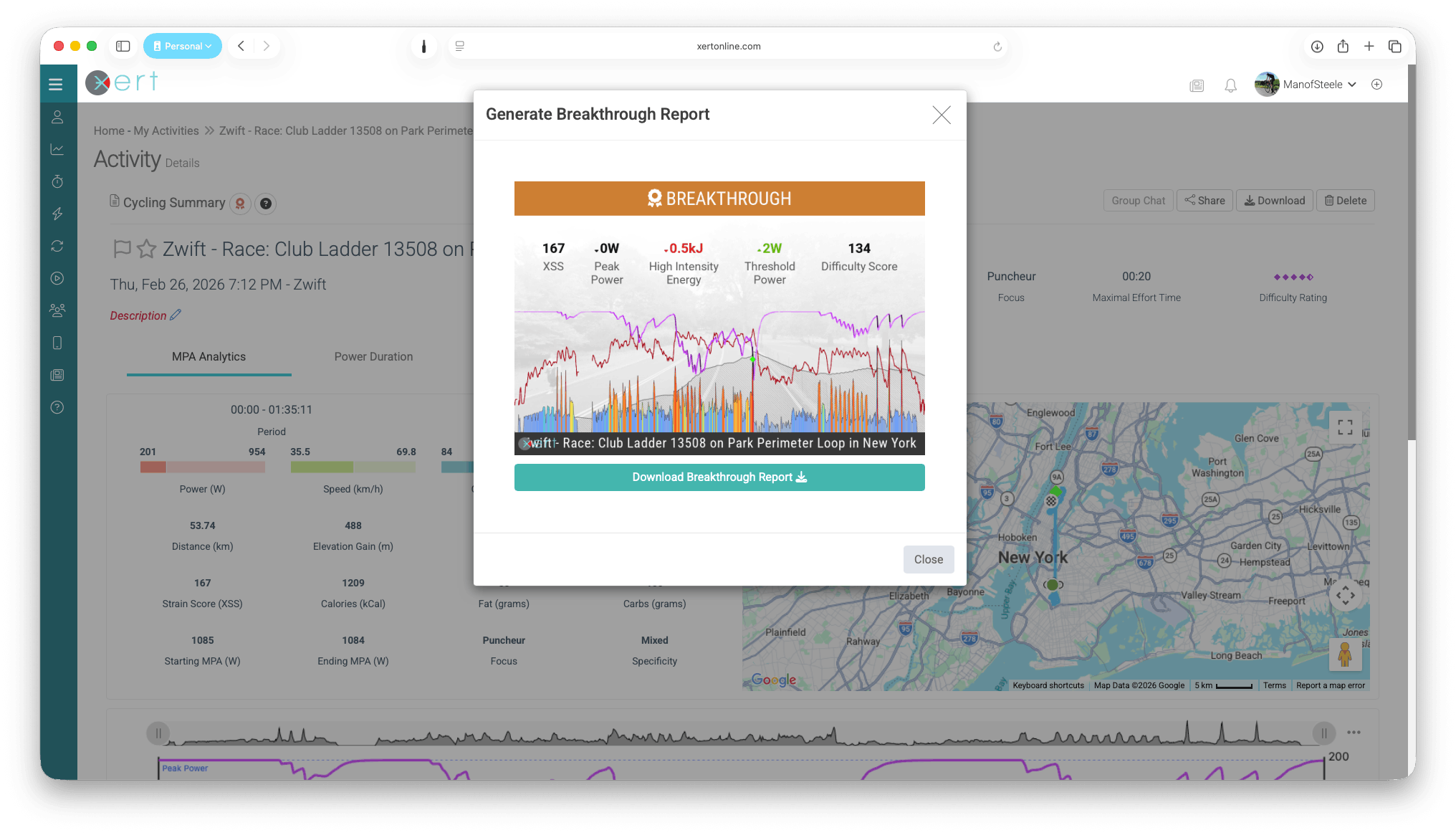
Clicking on the '?' button next to the Breakthrough Report will show the specific changes to your signature as a result of the activity.
Compare “Previous” vs “Current”
If your signature changed, you can compare how the activity looks using the signature before vs after the update:
- Previous: shows the MPA chart and activity metrics using the signature from the start of the ride (often closest to what you saw in real time on data fields).
- Current: shows the same activity recalculated using your updated signature.
Note: This is why your XSS totals or MPA trace, or Difficulty may differ slightly after upload compared to what you saw during the ride.
Step 5: Using Focus & Specificity to Understand Your Ride
MPA helps you understand how close to your limit you were. Focus and Specificity help you understand what kind of strain you accumulated across Xert’s three systems (Low/High/Peak).
You’ll often see these reflected in Xert’s auto-generated ride titles, such as: “Moderate Mixed Climber Ride” (Difficulty + Specificity + Focus).
What these mean
- Focus Duration: where the overall strain “lands” on your power-duration curve
- Specificity Rating: how tightly your strain clustered around that focus
Together, they help describe whether the ride was:
- Endurance-focused (mostly Low strain)
- Punchy / race-like (more High/Peak strain)
- Mixed (typical group ride / rolling terrain)
Related Glossary: Focus Duration
Related Glossary: Specificity
Step 6: Flag or favourite when appropriate
Favorite — ⭐
Star an activity if you want to:
- Save it as a favourite for future reference (recurring weekly rides, for example)
- Use it as a template for a Race AI training plan
Flag — 🚩
Flag an activity if:
- The file has obvious bad data (power spikes, dropouts during a key effort)
- You disagree with the breakthrough or believe it should not influence signature modeling
Flagging is especially important if corrupted data could skew PP/HIE/TP.
Related Article: Flagging an Activity
Common questions (FAQ)
Why didn’t I get a Breakthrough even though the ride felt hard?
There are some reasons you might be able to achieve a breakthrough even when you felt you were pushing hard, including fatigue, durability, and fueling/hydration status. See Scott from the Xert team answer this question in our Breakthroughs Tech Support Q&A video (here).
Why does Xert detect maximal efforts even if I didn’t set a PR?
Because Xert uses MPA and second-by-second fatigue modeling, not just average power. An effort can be maximal when considering fatigue (e.g. MPA already suppressed) even if it doesn't produce a new best average power for that duration. This is what makes Xert so unique & special!
Why do my XSS totals look different after upload?
After upload, Xert may update your Fitness Signature and then recompute metrics like MPA, XSS, and Difficulty using the updated model. Use Previous vs Current on the activity page to compare what you saw in real time vs the post-processed result.
Why does my multi-hour ride only have a 'Moderate' rating?
Difficulty Rating is driven mainly by intensity density (how quickly you accumulate XSS - i.e., XSS/hr) and responds strongly to repeated or sustained high-intensity efforts. Long, steady endurance rides often show Moderate Difficulty even if they’re tiring overall - simply because the high-intensity demand was moderate.
Comments
0 comments
Please sign in to leave a comment.